Help · Getting started
Turn shop features on and off
Your shop type switches on the parts that suit it. Shop profile, What this shop does is where you change your mind.
When you opened your shop you said what kind of shop it is, and that answer switched on the parts that suit it. A cafe gets a menu with sold-out toggles, a kirana gets khata and selling by weight, a clothing shop gets returns and exchanges. None of it is fixed: you sell what you sell, not what your category says.
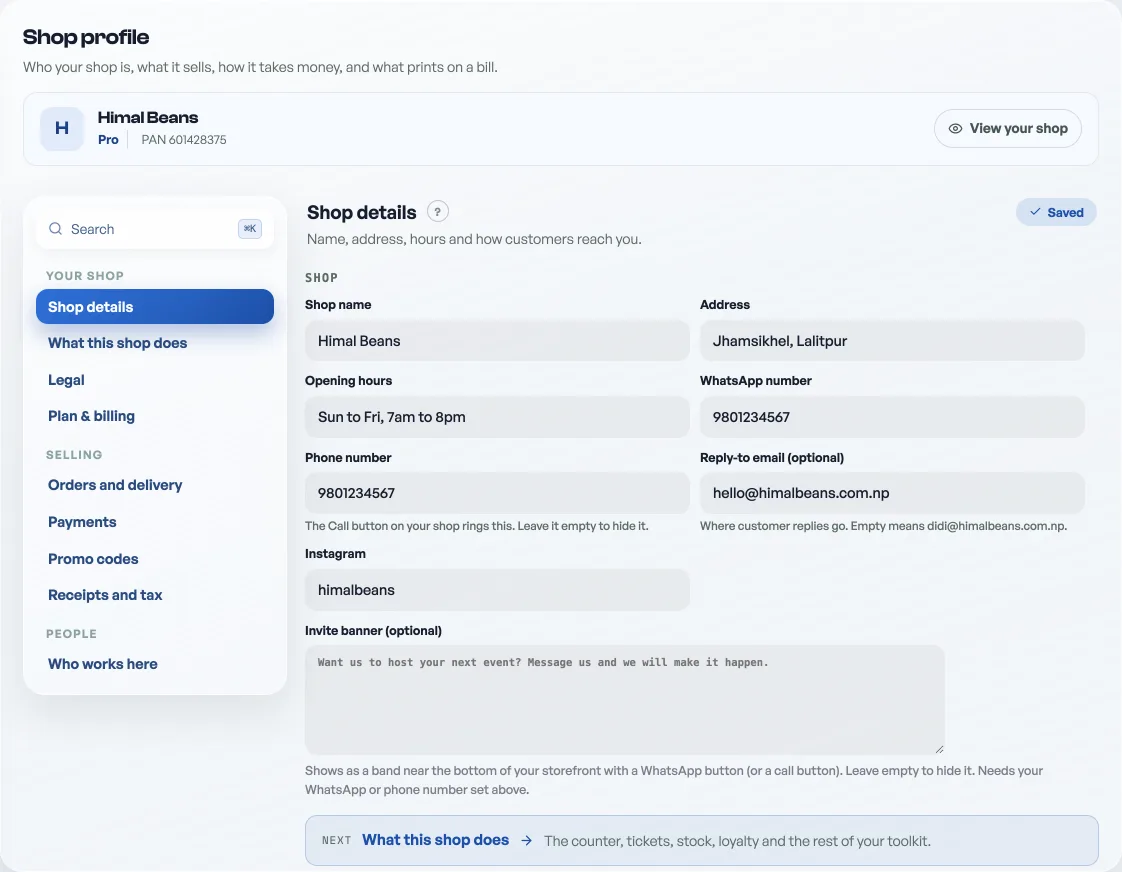
- Open Shop profile. It is three groups of rows: Your shop, Selling and People. On a phone there is a search box at the top if you would rather type the word; on a computer that button opens the Ctrl K search instead.
- Tap What this shop does, the second row under Your shop.
- Press a switch. It saves on the spot; there is no Save button to press afterwards.
- Watch the dashboard follow. A feature you switch on brings its own tab, its own settings and its own guide. One you switch off takes them away.
What you can switch
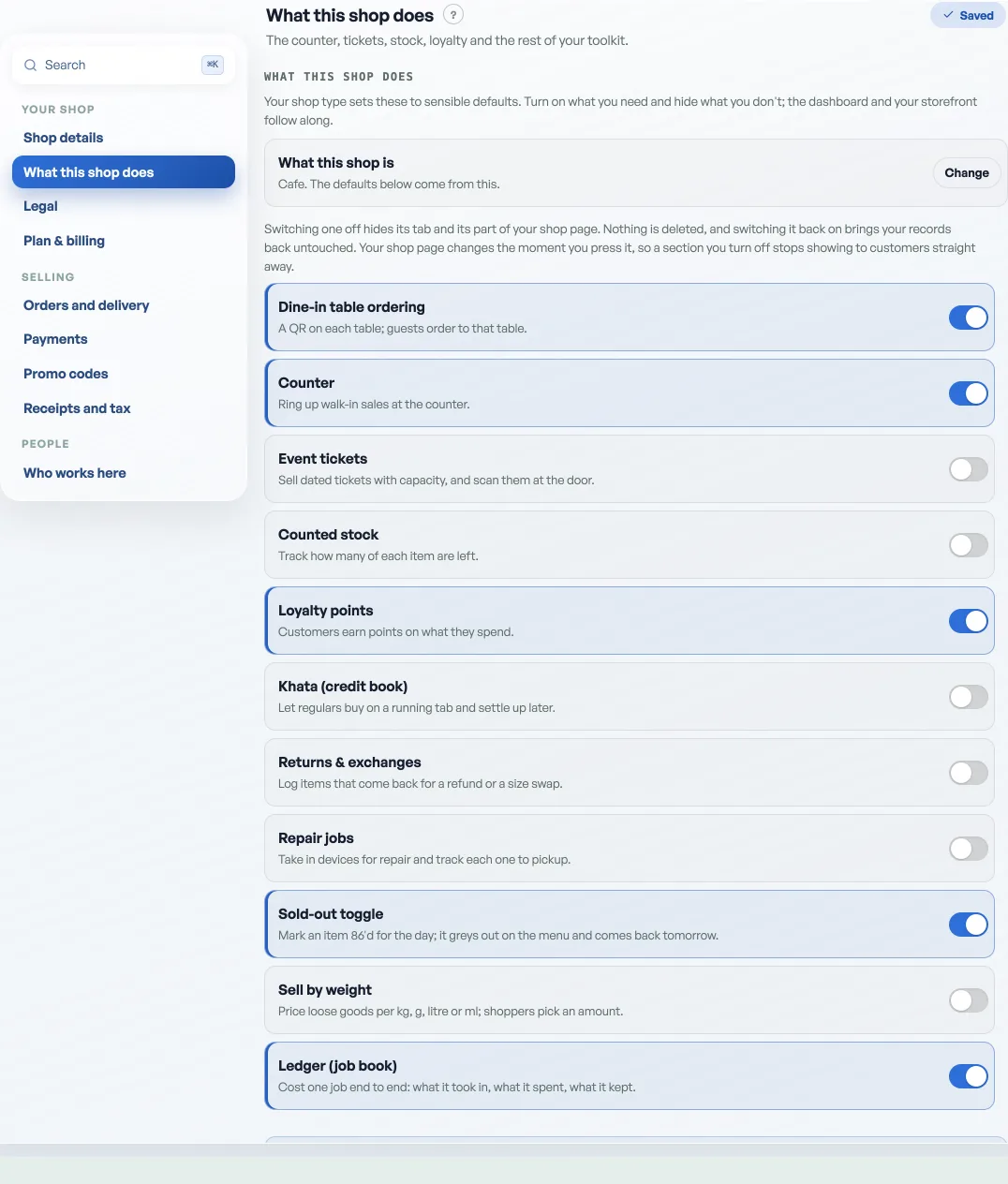
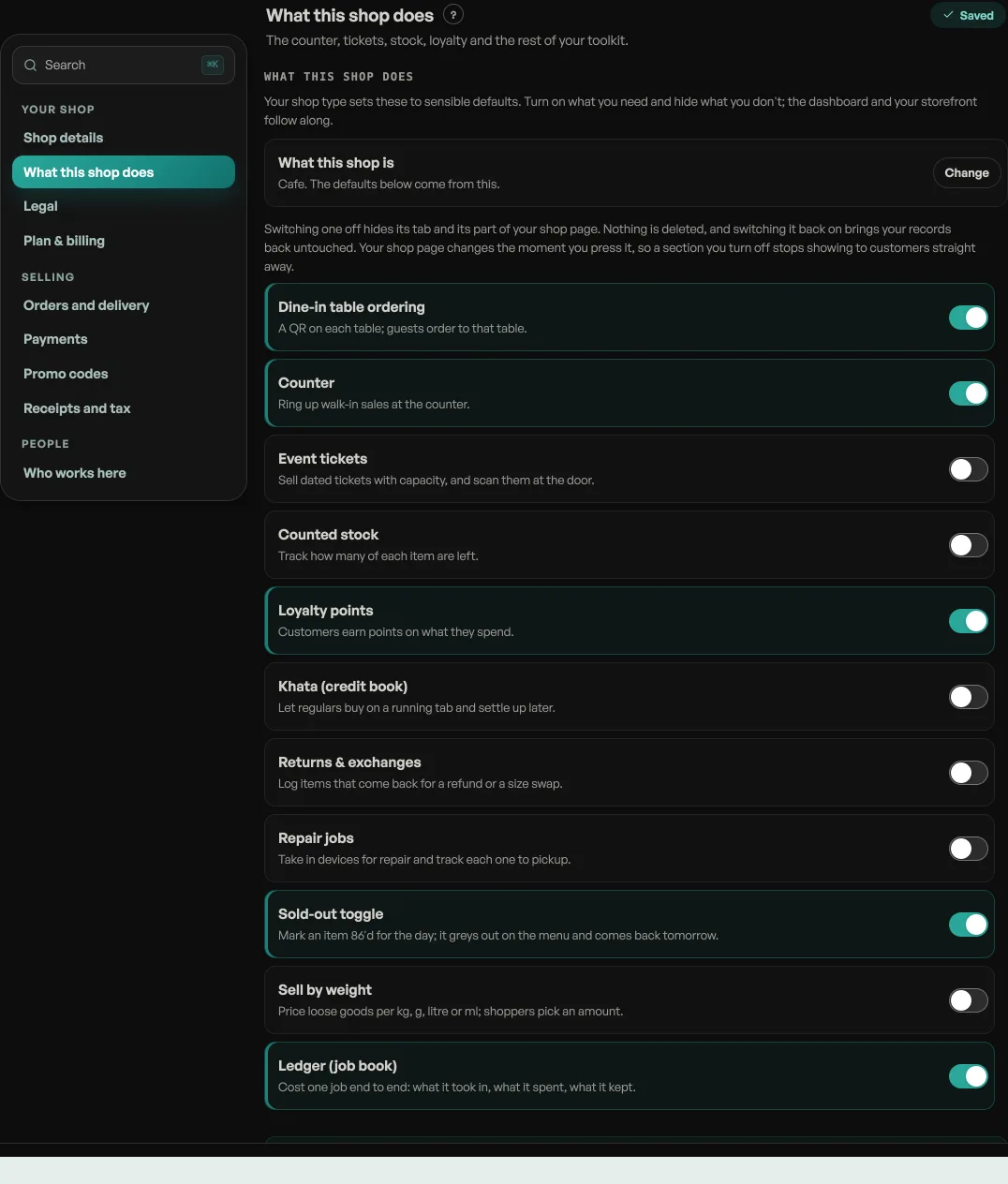
- Product catalog: a list of things to buy. This one only appears where your shop type does not already assume a catalog (a ticket seller adding merch, a salon selling products), so nobody can switch off the shelf their whole shop stands on.
- Dine-in table ordering: a QR on each table, see table ordering.
- Counter: ring up walk-in sales at the counter.
- Event tickets: dated tickets with capacity, see selling tickets.
- Counted stock: track how many of each item are left.
- Loyalty points, Khata, Returns & exchanges, Repair jobs, Sold-out toggle and Sell by weight: each has its own guide, and each is on by default for the trade it was built for.
Almost all of them sit on top of a catalog, so they only show while your catalog is on. Turn the catalog off and the shelf takes them with it.
Where a new feature turns up
Some switches bring a whole tab. Event tickets adds Events and Scan; khata, returns and repairs each add their own. Counter puts Open the counter at the top of the rail, and in the middle of the bottom bar on a phone. Dine-in table ordering adds the Table QRs pane under Link & QR. Set a table count there and a Tables tab appears after Orders for the running bills.
Others change what is inside a tab you already have: the sold-out toggle puts an In stock / Sold out button on every product, and sell by weight adds How it's sold to the product editor. Turning event tickets on changes your storefront too, from a product grid to a What's on board.
The switches that live elsewhere
- Pickup, delivery and bookings are under Selling, in Orders and delivery, because each carries its own rules: fees, hours, table counts.
- Order alerts and the daily summary email are on Settings, in Account, with your password: they are about how Pasal reaches you rather than about what the shop sells.
- How customers pay you is under Selling, in Payments: your eSewa, Khalti, Fonepay or bank QR and the line that says what it is. See Take payment by QR.
- PAN/VAT, service charge, your legal name and the width of your printed bill are under Selling, in Receipts and tax. See how a bill adds up and the roll width. The address customer replies come back to is under Your shop, in Shop details, with your phone and WhatsApp number, see where customer replies land. Your terms and privacy are under Your shop, in Legal.
- Promo codes have their own row under Selling. The colour and the language of the dashboard itself are two rows on Settings: Colour and text size, and Language.
Nothing is deleted
Switching a feature off hides it, it does not erase anything. Your khata balances, repair jobs and past returns all sit where you left them, and switching it back on brings the tab and the rows back untouched.
Your staff tick boxes follow the same list, so turning a feature on also adds it to what you can grant a staff member, see Add staff and choose what they see. If something you expected is not there at all, work down When a tab or a button is missing.
- Ring a sale at the counterOpen the counter, build a bill, take cash or QR, and hand over a receipt.
- Print on a 58mm or 80mm rollTell Pasal which paper your printer takes, and the bill is laid out to fit it.
- Where customer replies landChoose the address a customer reaches when they reply to your order or booking email.