Help · Account & troubleshooting
When a tab or a button is missing
Why two people can open the same dashboard and see different tabs, and how to get one back.
The dashboard only shows what your shop actually does, what your plan includes, and what the person signed in is allowed to use. So a tab you read about in a guide, or saw on someone else's screen, or had yourself last week, may simply not be turned on for you. Work down this list.
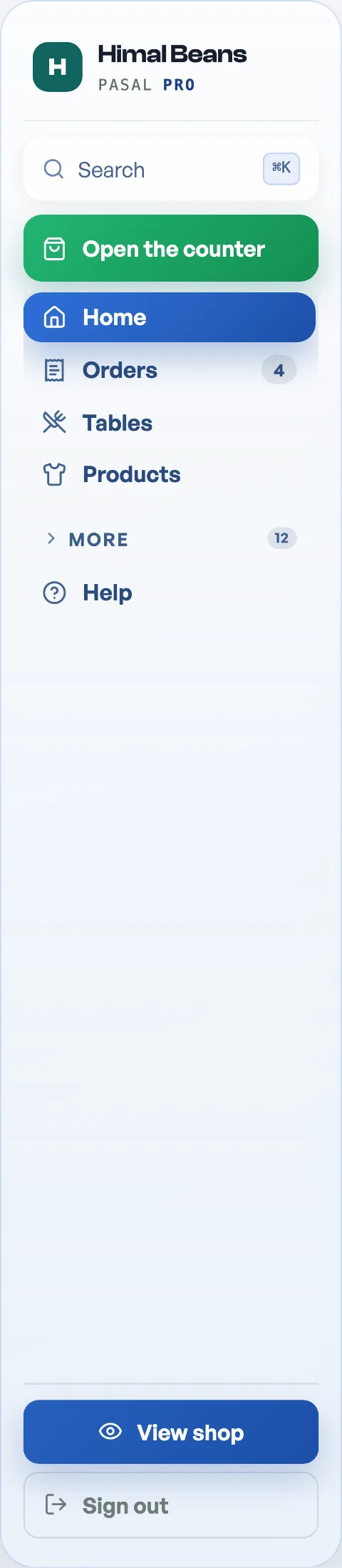
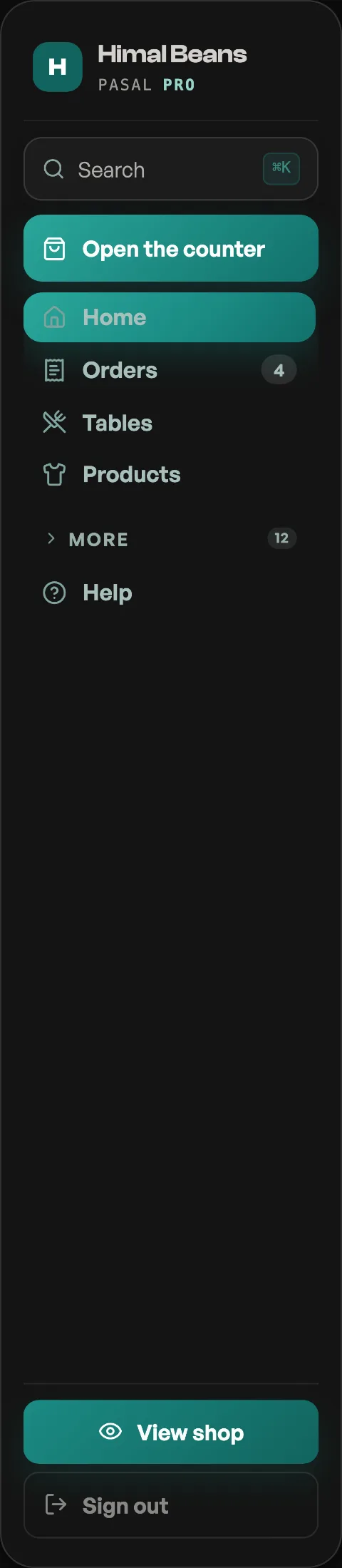
- Is it behind More? This is much the commonest answer. The rail keeps the few screens a shop touches all day in the open and folds every errand behind one More heading, with a count beside it while it is shut. Open it and the rows sit under Money, People, Your shop and Set up. A row you reach for daily can be pinned, and a pinned row lifts above Home and stays out of the fold. See Find your way around the dashboard.
- Looking for Costs & profit? It no longer has a row of its own, and nothing was taken away. Job books are now reached from Paid out, under Money: the link at the foot of that page reads Job books live in Costs & profit. A link or bookmark somebody sent you still opens it, and a staff member ticked for it still has it.
- Is the feature on? Open Shop profile, then What this shop does, under Your shop. Khata, returns, repairs, event tickets, the counter and dine-in ordering each appear only when their switch is on. See Turn shop features on and off.
- The switch is on and the tab is still gone? Then it is your plan, and nothing is broken. Eight tools need Pro: the Counter, Khata, Events and the door scanner, Bookings, Loyalty, Promo codes, the TV board and Costs & profit. Every new shop gets 30 days of Pro free, and when those days pass the eight go quiet on their own. The feature switch stays exactly where you left it, which is why this looks like a fault and is not one. Check Shop profile, then Plan & billing: it names your plan and, on Pro, the date it is paid until. Read What happens when your free trial ends for what still works meanwhile, and What Pro costs and how to turn it on to get them back.
- Are you signed in as staff? Staff see only the features their owner ticked. Home, Help and Payslips are always there, and Payslips only ever shows a staff member their own. The Staff tab and For your accountant are never granted, so only the owner can see who rang or open the audit pack, and only the owner can add people under Shop profile, Who works here. Ask the owner to tick what you need, and it appears the next time you load the dashboard.
- Are you on a phone? There is no rail at all below a laptop width. The bar across the bottom holds five slots and everything else opens as a sheet behind More, under the same family headings. Payslips is in that sheet for everybody, and Accountant and Shop profile are there too if you are the owner.
- Search for it. Press Ctrl K, or Cmd K on a Mac, and type the word you would use. Several settings live inside a pane of Shop profile or Settings, and search opens the pane itself, on whichever of the two holds it. See Find your way around the dashboard.
A guide you were sent is not in your Help tab
The guide list inside the dashboard is filtered the same way the tabs are: an events company is not shown guides about delivery rules or khata. Turn the feature on and its guide joins your list. The public help centre always lists everything.
A staff tick box you expected is not offered
You are only offered permissions your shop can honour, and there are two reasons it might not honour one. The feature may be off: a cafe is not asked whether its staff may work the event door, because that shop has no door to work. Turn it on under Shop profile, "What this shop does", and the tick box appears under Who works here.
Or the shop is not on Pro. Events & door, Khata and Costs & profit (job book) open Pro tabs, so a free shop is offered ten ticks instead of thirteen. Staff accounts are a Pro feature in the first place, so a free shop runs on the owner login alone, and Add them is refused. See What Pro costs and how to turn it on.
Order alerts reach nobody
Alerts are per device and per browser, so every phone or laptop that should buzz has to be switched on once, in Settings, then Account. Two more things catch people out. On an iPhone the dashboard must be added to the home screen first, or there is nothing to notify, and the row explains that in place of a switch. And if you once pressed Block or Don't allow when the browser asked, it will never ask again: clear the notification permission for pasal.studio in your browser's site settings, then switch alerts on again. If the switch still will not go on, the line under it names what stopped it. Once alerts are on, Test this device rings this phone straight away, so you never have to wait for a customer to find out. The full setup is in Get alerted for every new order.
Still missing something after all that? Message us on WhatsApp from the Help tab and tell us the tab you are looking for. We reply, usually the same day.
- What happens when your free trial endsWhich tools go quiet, what deliberately keeps working, and why nothing you have built is ever locked away.
- What Pro costs and how to turn it onThe price of Pro by the month and the year, what it adds, what stays free forever, and how to pay for it today.
- Get alerted for every new orderInstall the dashboard like an app and turn on notifications so nothing is missed.