Help · Running the shop
Add staff and choose what they see
Two lists: a PIN for the till, or an email for this dashboard.
Adding someone is under Shop profile, then Who works here, which is on the rail behind More. Two lists, not one. Give someone the dashboard is the form on the page: an email and the ticks. Who works the counter is a name and a PIN for the till, and it stays closed until you press Ask who is ringing. Somebody can be on either list, both, or neither.
The Staff tab in the rail is who took money at the counter, and who placed a New order while signed in. See See who rang at the counter.
You do not have to hand out your own login. Add someone by their email address and they get their own way in, with only the tabs you granted.
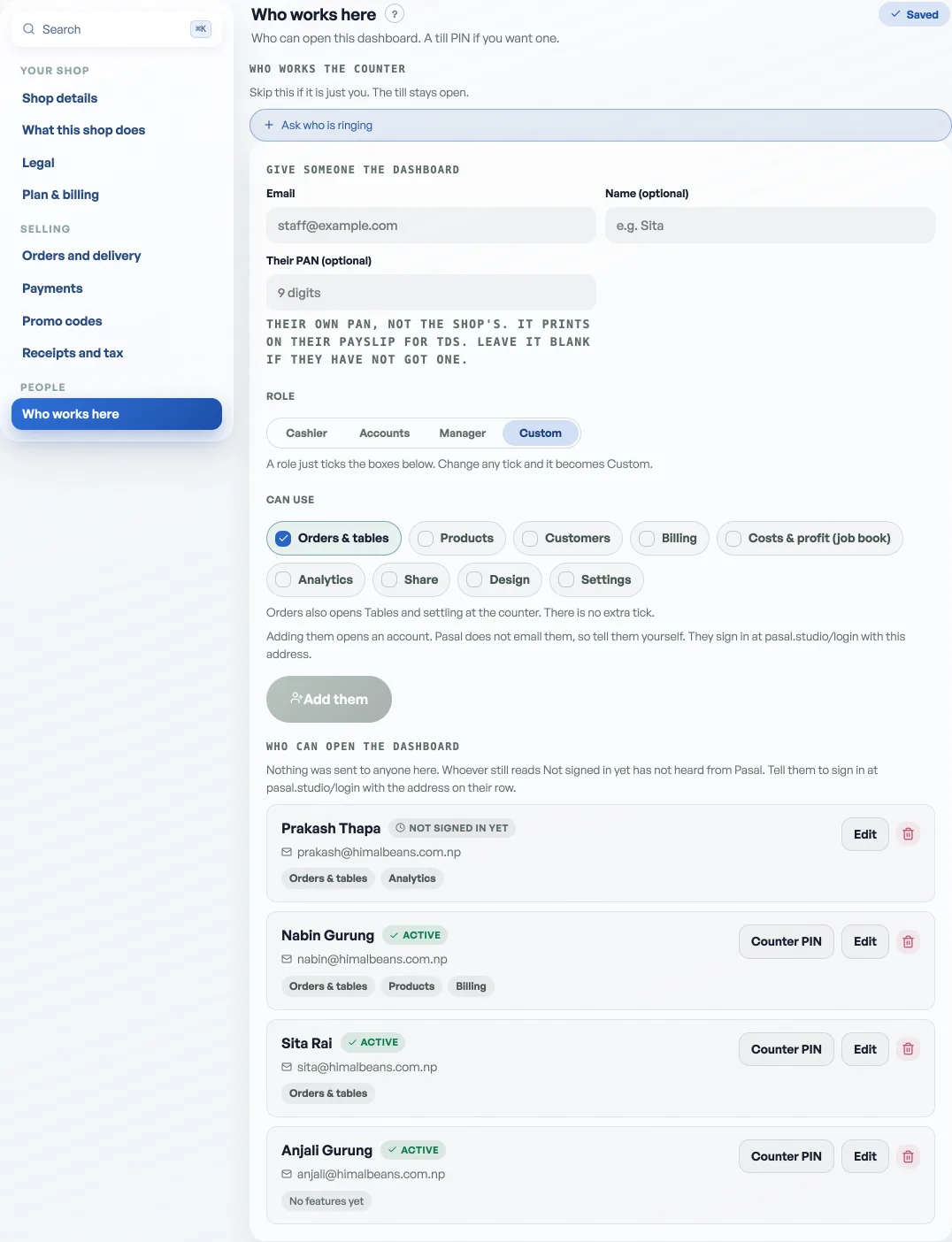
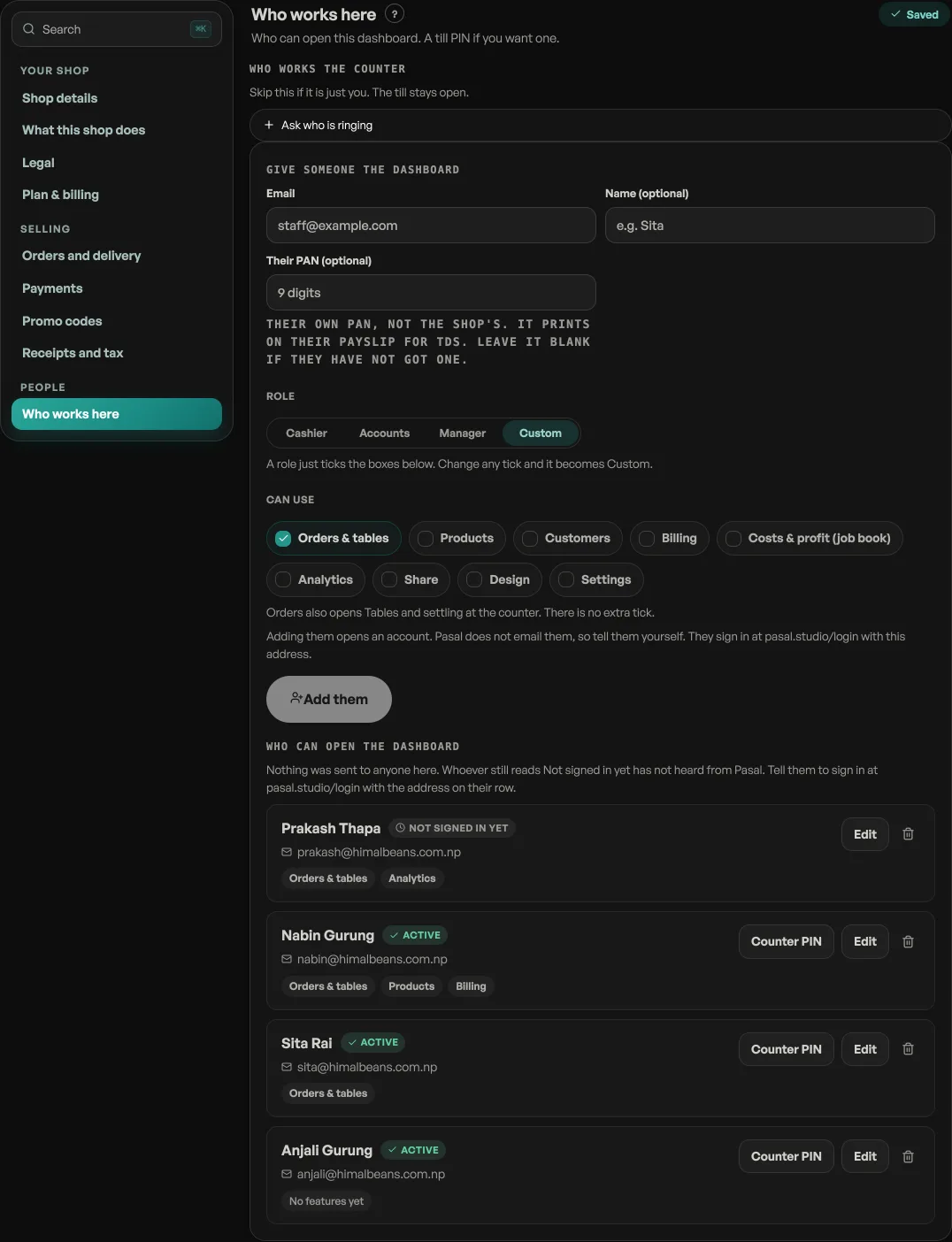
- Open Shop profile, then Who works here. Under Give someone the dashboard, enter their email and name.
- Tick what they may use under Can use. There are thirteen ticks: Orders, Events & door, Products, Khata, Returns, Repairs, Customers, Billing, Costs & profit (job book), Analytics, Share, Design, Settings. Two are named for the job rather than the tab: Billing opens Bills, and Analytics opens Visitors & sales.
- Tell them yourself. Pasal sends nobody an email. Message them, or say it across the counter, and give them the exact address you typed. The pane says the same thing beside the button.
- They sign in with that email. They go to pasal.studio/login and ask for a code with exactly that address. Until they do, their row reads Not signed in yet rather than Active. They see the tabs you ticked and nothing else, plus Home and Help, which everybody has.
On a shop with table QR on, the Orders tick reads Orders & tables. It opens the Tables tab, lets them add items to a seat from New order, and lets them settle at the Counter. There is no ninth tick. Anyone who already has Orders already has that. The walk is Run a table from the dashboard.
Their account is opened the moment you press Add them, so the code reaches them the first time they ask for one. Nothing is sent to them and nothing appears in their inbox until they ask, which is why you still have to tell them. They must not press Create your shop, which starts a second shop instead of joining yours. See Signing in to your dashboard.
If the sign-in page still answers We couldn't send a code to that email, check the address on their row for a typo. If it is right, press Add them again with the same address. Adding somebody twice is safe: it keeps one row, keeps one account, and changes nothing else.
A row can also read Cannot join. That address already runs its own shop on Pasal, and an account can run one shop, so the row will never come alive however many times they sign in. Waiting does not fix it and neither does adding them again. Ask them for a second email address, add that one, and remove this row.
The list holds twenty people. When it is full, adding another is refused until you remove somebody.
Permissions are not set in stone: tick or untick any time and it applies the next time they load the dashboard. Removing someone takes their access away entirely.
What Home shows everybody
Home is the one tab you cannot take away, so it is worth knowing exactly what stands on it. Everyone you add sees the shop's takings there: paid today, the week's bars, paid this week. That is the money, and it is the same figure you see.
What they do not see on it is anybody's details. Your customers' names, phone numbers, email addresses and delivery addresses come with the Orders, Bills, Customers, Returns and Events & door ticks, and without one of those a staff member cannot read a single customer row. What you paid for your stock comes with Products, Orders or Costs & profit (job book), so today's profit is on Home only for somebody holding one of those three. Home says which tick is missing rather than showing a zero.
Three ticks you may not be offered
You are only offered a permission your shop can honour, so the list is shorter for some shops. Two things shorten it:
- The feature is off. A cafe is not asked whether its staff may work the event door, because that shop has no door to work. Turn the feature on under Shop profile, What this shop does and its tick appears.
- The shop is not on Pro. Events & door, Khata and Costs & profit (job book) unlock Pro tabs, so a shop on the free plan is offered ten ticks rather than thirteen. See What happens when your free trial ends.
Staff accounts are themselves a Pro feature: on the free plan the shop runs on the one owner login. See What Pro costs and how to turn it on.
Staff management itself is never grantable, so a staff member can never add other staff or widen their own access. Shop profile's Who works here, and the Staff tab that names who rang, are yours alone.
How the till uses those names and PINs is under Ring a sale at the counter. Only you can change that list. A staff member with the dashboard cannot read a colleague's PIN and cannot set one, whatever else you have granted them.
- See who rang at the counterToday and this week, named from the till and from signed-in New orders, with a total for each person.
- Ring a sale at the counterOpen the counter, build a bill, take cash or QR, and hand over a receipt.
- Turn shop features on and offYour shop type switches on the parts that suit it. Shop profile, What this shop does is where you change your mind.