Help · Money
Ring a sale at the counter
Open the counter, build a bill, take cash or QR, and hand over a receipt.
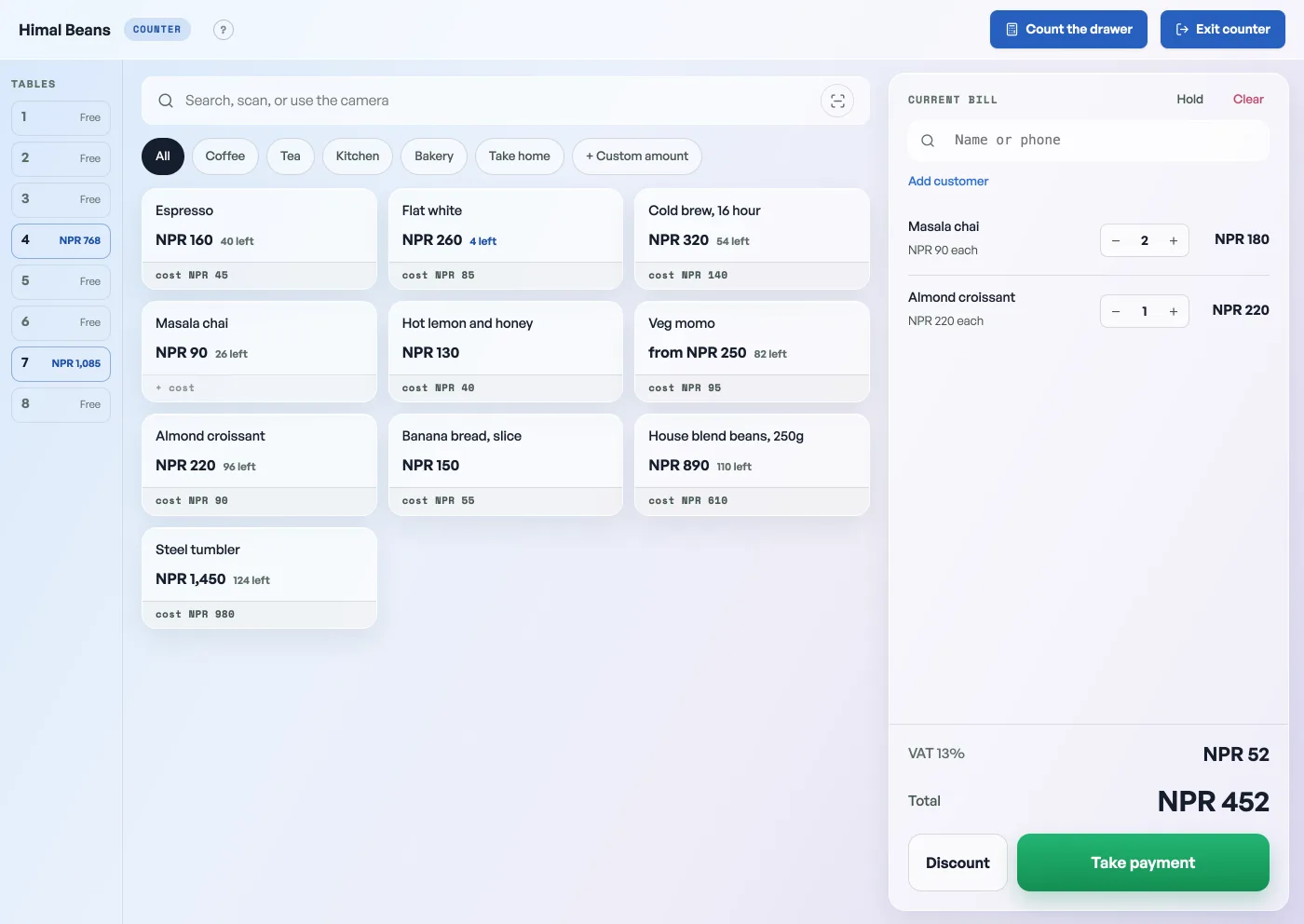
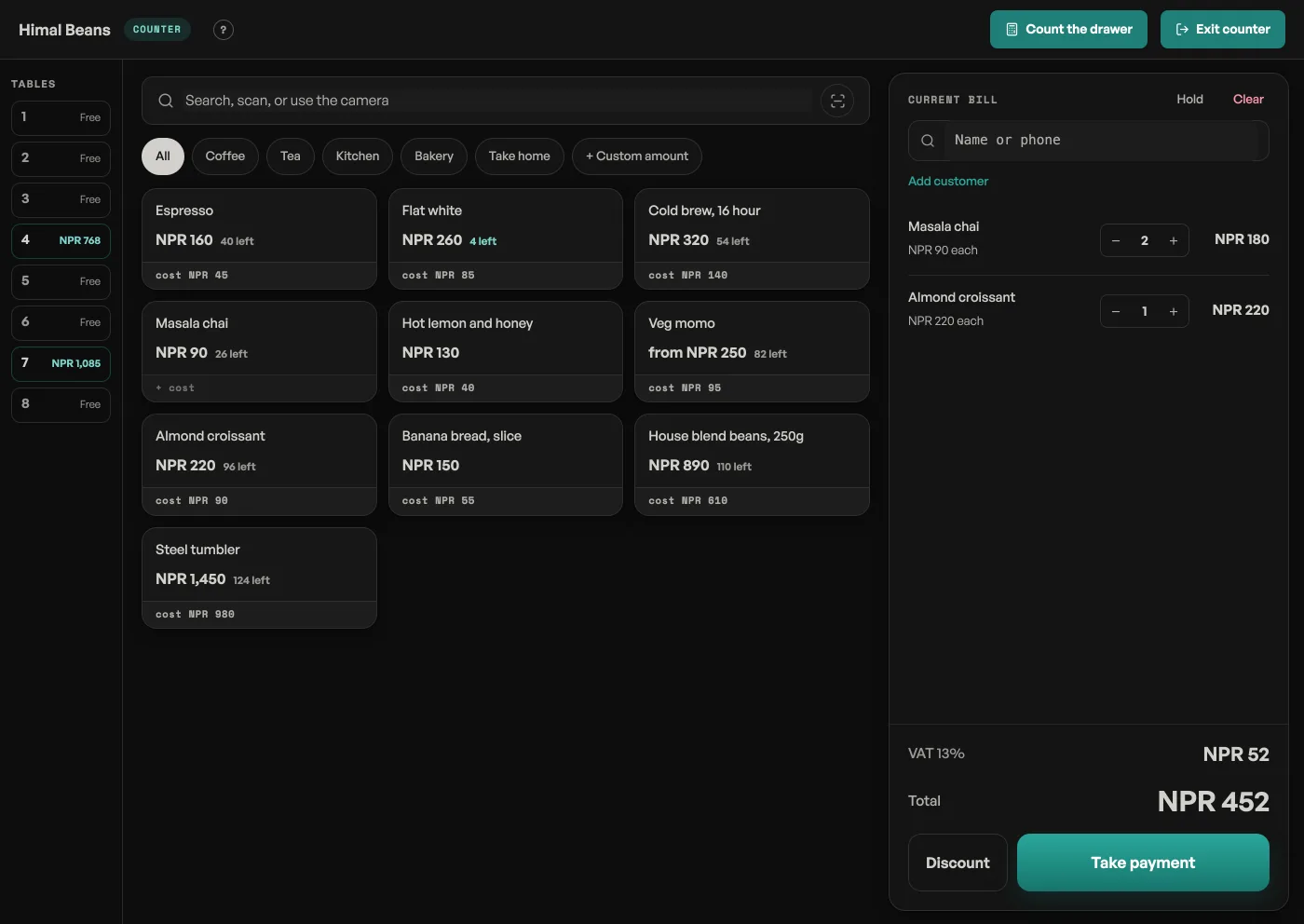
The counter is the sales screen: full screen, big buttons, made for standing up with a customer waiting. Every sale it takes is recorded straight away, already marked paid, so your books do not need a second pass at closing time.
- Open the counter. On a computer it is Open the counter at the top of the left menu. On a phone it is the Counter button in the middle of the bottom bar. It takes over the whole screen; Exit counter puts you back in the dashboard.
- Build the bill. Tap a product and it joins the bill on the right. Narrow the tiles with the category buttons, type in the search box, or scan a barcode into it: a USB scanner types the code and presses Enter, which puts the item straight on the bill. An item with sizes asks which size; an item sold by weight asks for the scale reading.
- Ring something not in your catalog. Press + Custom amount, type the amount and what it is, and it goes on the bill as its own line.
- Correct as you go. The plus and minus on each line change the quantity, and Clear empties the bill.
- Press Take payment.
Taking the money
Cash is the default. Tap a quick amount (the exact total, or the round note a customer actually hands over) or type what they gave you on the number pad. The change to give back is the biggest number on the screen, so nobody is doing sums with a queue waiting.
eSewa, Khalti, Bank QR and Card have no change to work out: pick the method, take the money the way you always do, and press Complete sale. Then you can print the receipt, send it on WhatsApp, or go straight to the next sale.
The bill the counter prints is the same document the dashboard prints and the same one a customer is emailed. The counter used to word its own, which is how one sale ended up with three different pieces of paper. Set your roll width once under Shop profile, Receipts and tax, see Print on a 58mm or 80mm roll.
Two customers at once
Press Hold to park a bill. It waits as Bill 1, Bill 2 above the lines; tap it to bring it back. If a bill is already open when you resume another, it parks itself in the same breath, so nothing is ever dropped. A parked bill waits five minutes and then it goes. A hold means somebody stepped aside, usually to the ATM, and a bill parked yesterday is litter on the one screen that has to be read fast. Leaving the counter parks the open bill the same way, so it is gone too if you are away longer than that.
When the internet drops
The customer has paid and is walking away, so the sale completes anyway. It is saved on that device, and an amber line under the top bar counts how many are waiting to sync. They go up on their own when the connection comes back, so leave the counter open on that device until the line clears.
Who is on the counter
Open Shop profile, then Who works here, and press Ask who is ringing under Who works the counter. That list stays closed until you ask, because most shops are just the owner. Add names and PINs. The counter then asks who is ringing before it will ring anything. The name is stored with the sale and printed on the bill. The Staff tab in the rail then shows who took money today and this week. See See who rang at the counter. Tap the name in the top bar to hand the counter to someone else. If it is just you, leave it closed and there is no lock.
A staff member signed in with their email is named on the sale without a PIN, as long as the till is not asking who is ringing. If you have asked, they still type a PIN, and that name is the one that lands.
Pasal never shows a PIN again once it is saved. Nobody at the shop can read one back, and neither can we. If somebody forgets theirs, type a new one over the top. Anybody on the list without a PIN cannot open the counter.
Five wrong tries in a row and that person waits a minute before trying again. It is only that person, so the counter still opens for everybody else, and the wait clears itself.
A PIN is checked by Pasal, not by the phone, so the counter needs the internet the first time each person opens it. After that the same device remembers them for the day and the PIN keeps working with the internet down. If the connection is already gone and nobody has opened the counter on that device yet, Pasal cannot check a PIN at all. The counter still opens so you can keep selling, and it says No name in the top bar. Those sales are recorded without a name until the internet comes back.
That list is for the counter, and it is not the same thing as giving somebody the dashboard. For that, use Shop profile, then Who works here, see Add staff and choose what they see.
A table that already ordered
Walk-in ringing is money now, goods now. A table bill is the opposite: the kitchen already has the ticket, and you take the money when they leave. The green Settle table pill pulls that seat's open unpaid tickets into the cart. Plus and minus change a quantity. The bin takes a line off. Both write the kitchen ticket. Taking the last line off a ticket asks first, because that cancels it. Take payment then works as it always did. The full walk, including opening the bill from Orders, is Run a table from the dashboard.
Counter sales land as Done and paid. They show in your billing records, and on the Orders tab under Show completed orders, where a mistake can be refunded. Taking a phone order that still has to be packed is a different job: use New order on the Orders tab for that.
The counter is a Pro tool. On the free plan it leaves the dashboard and no new counter sales can be rung; every sale you have already taken stays in your books and your reports. See What Pro costs and how to turn it on.
- Add staff and choose what they seeTwo lists: a PIN for the till, or an email for this dashboard.
- Managing orders on your boardMove tickets through fulfilment, collect payment, and keep the board tidy.
- Print receipts on a thermal printerConnect a 58mm or 80mm roll printer and print from the counter or any past order.