Help · Orders & fulfilment
Print receipts on a thermal printer
Connect a 58mm or 80mm roll printer and print from the counter or any past order.
Pasal prints proper counter bills on the thermal roll printers Nepali shops already use, 58mm or 80mm, with your PAN details on top when you have filled them in.
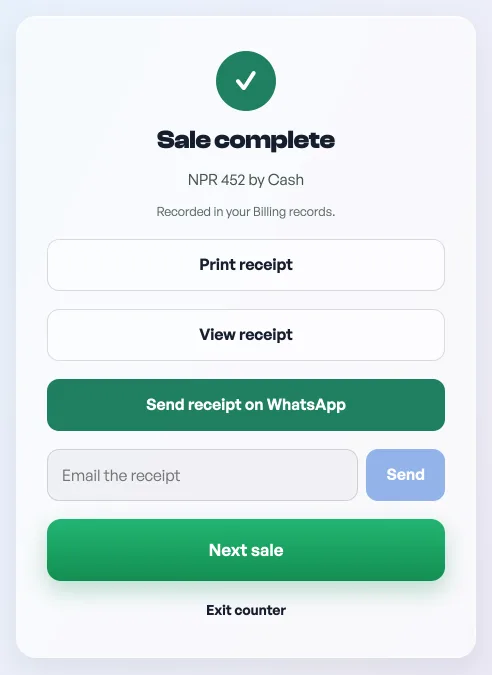
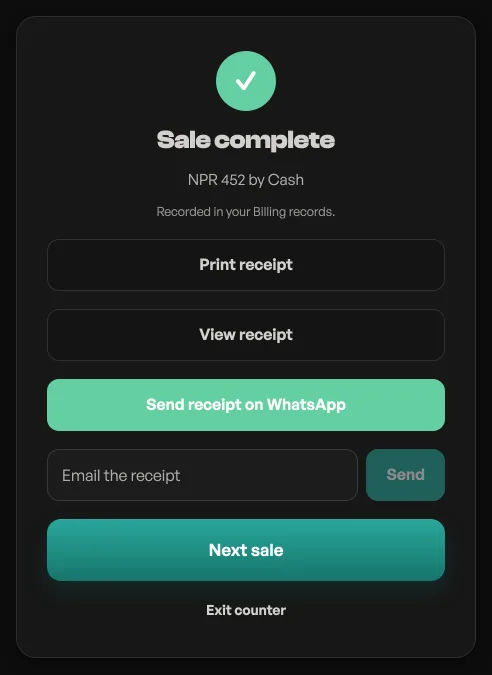
- Connect the printer once. On a computer, plug the printer in by USB and install its driver so it appears as a normal printer. On an Android phone with a Bluetooth printer, install the printer maker's print-service app once; after that the printer shows up in the print screen.
- Tell Pasal your roll width. Open Shop profile, then Receipts and tax under Selling, and set Printed bill width to 58mm or 80mm. Do this before your first print, see Print on a 58mm or 80mm roll.
- Print from the counter. Complete a sale and press Print receipt. In the print box that opens, set Destination to your thermal printer, not Save as PDF. On the next sale it is remembered as the last-used printer.
- Reprint any bill. On Orders, open the row's three-dot menu and press Invoice. On Bills, under More on the rail, press the receipt icon at the end of the row. A customer's history opens the same document. Then press the Print button, which names the width it is about to use.
One bill, wherever it comes from
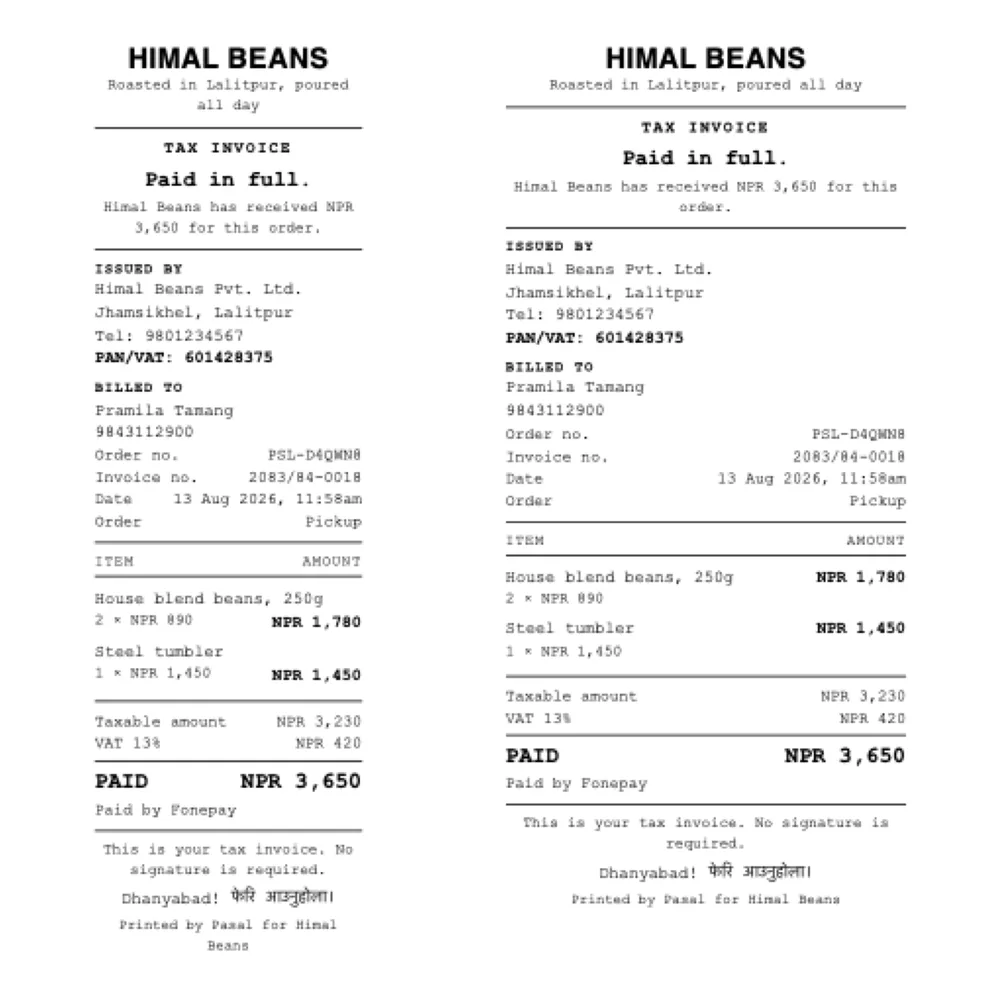
The counter used to print a bill of its own, worded differently from the one the dashboard printed and from the one the customer was emailed. It does not any more. The counter, the order document and the emailed PDF are now the same document, so a customer holding two copies of one sale can never find your shop disagreeing with itself.
What the paper calls itself follows the money, not your printer. Paid, with a PAN on file and a number issued, it heads itself Tax invoice. Paid without a PAN, it is a Payment receipt and says in as many words that it is not a tax invoice. Nothing paid yet, and it is an Order summary headed Not paid yet, because a shop should never print "receipt" over money it has not been given. See Tax invoice numbers.
Add your PAN/VAT and legal name under Shop profile, then Receipts and tax, and they print at the top of every bill.
- Print on a 58mm or 80mm rollTell Pasal which paper your printer takes, and the bill is laid out to fit it.
- Tax invoice numbersFill in your PAN and every paid order gets a numbered tax invoice, counting up from 1 each Shrawan.
- Managing orders on your boardMove tickets through fulfilment, collect payment, and keep the board tidy.