Help · Getting started
Signing in to your dashboard
A six digit code by email, an optional password, and what to do when neither one works.
There is no password to remember unless you want one. Go to pasal.studio/login, type your email, and press Email me a code. A six digit code arrives; type it in and your dashboard opens.
- A code lasts an hour. Ask for a new one with Resend code if it expires.
- A resent code cancels the one before it, so always use the digits from the newest email.
- Typed the wrong address? Press Use a different email and start again.
Set a password, if you prefer
A password is an optional spare key, useful when email is slow. Open Settings, then Account, and set a sign-in password of at least eight characters. Setting a new one quietly replaces the old.
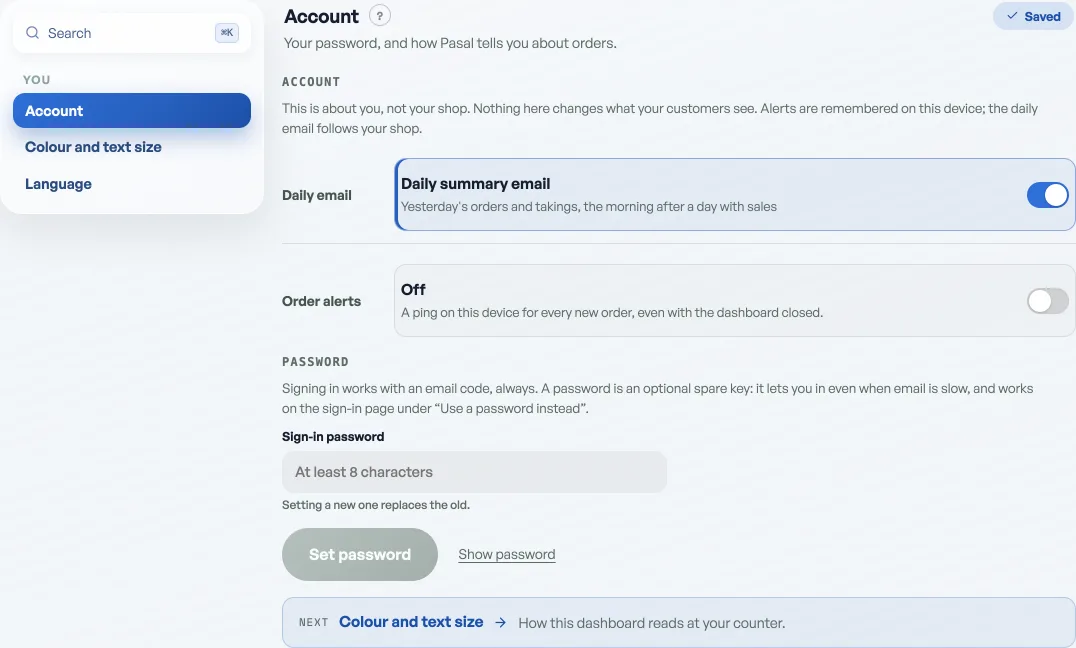
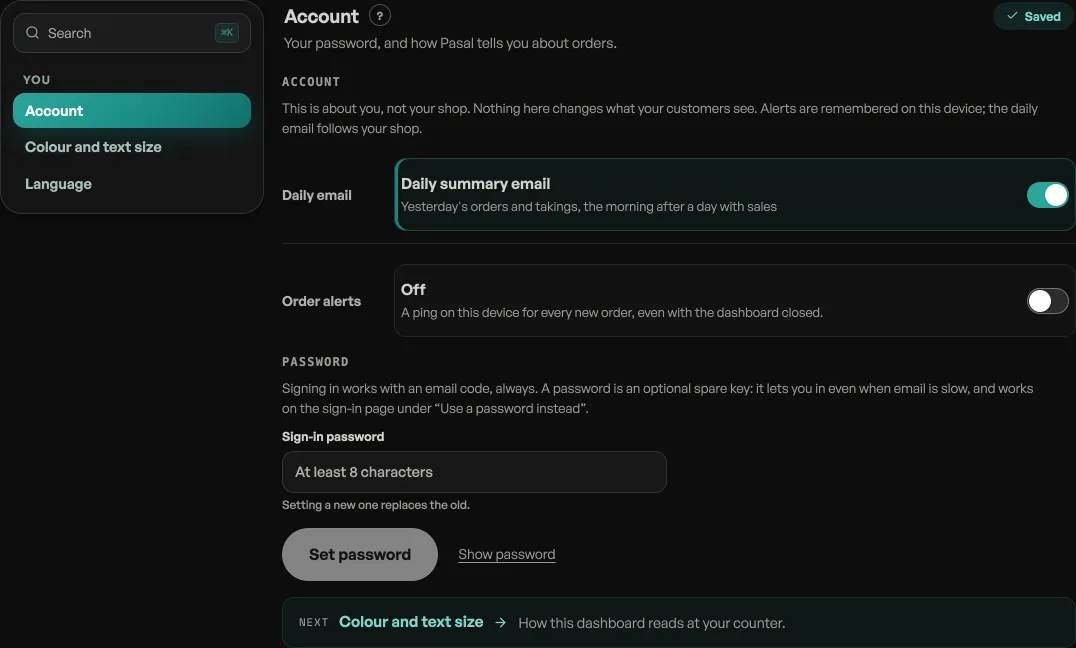
After that the sign-in page offers Use a password instead. Forgotten it? Press Forgot password and a reset link is emailed to you. It also expires in an hour, and the code still works whether or not you ever set a password.
Staff sign in the same way
A staff member signs in at the same page, with the exact email address the owner put under Shop profile, Who works here, and lands on the same dashboard showing only what was ticked. Pasal emails nobody when a name goes on that list, so the owner passes the word on. The account itself is opened when the owner adds them, so the code works the first time they ask for one. Until that person signs in, their row shows Not signed in yet rather than Active.
When you cannot get in
- No code arrived. Check spam and promotions, and check the address for a typo. Codes go only to the address on the account.
- "Too many emails sent" means too many attempts in a short spell. Wait about an hour, or use your password if you set one.
- "We couldn't send a code to that email" means no account exists for it yet. For a staff member that is almost always a typo: the address has to match the one on their row under Shop profile, Who works here, letter for letter. Ask the owner to check it and to add them again. Do not use Create your shop, which starts a second shop rather than joining yours.
- "That email and password don't match" usually means you never set a password. Sign in with a code instead.
- "No shop on this account yet" means you are signed in with an address that is not linked to any shop. Sign out, try your other address, and message us if it still says so.
One last thing worth knowing: signing in always happens on pasal.studio, even when your shop has its own domain. Open the dashboard from your own address and Pasal sends you there to sign in, which is why a session made on one address is not carried by another.
- Getting started with PasalFrom an empty page to a live shop taking orders, and what your free trial includes.
- Turn shop features on and offYour shop type switches on the parts that suit it. Shop profile, What this shop does is where you change your mind.
- Find your way around the dashboardThe short rail and the one fold behind it, searching from any tab, working on a phone, and the colour and language you prefer.