Help · Orders & fulfilment
Let dine-in guests order from the table
A QR on every table: guests scan, order to that table, and it reaches your board labelled Table 4.
Dine-in ordering puts a QR code on each table. A guest scans it, reads the same menu as everyone else, and orders to that table. Nobody waits to catch a waiter, and nobody types a phone number to eat where they are sitting.
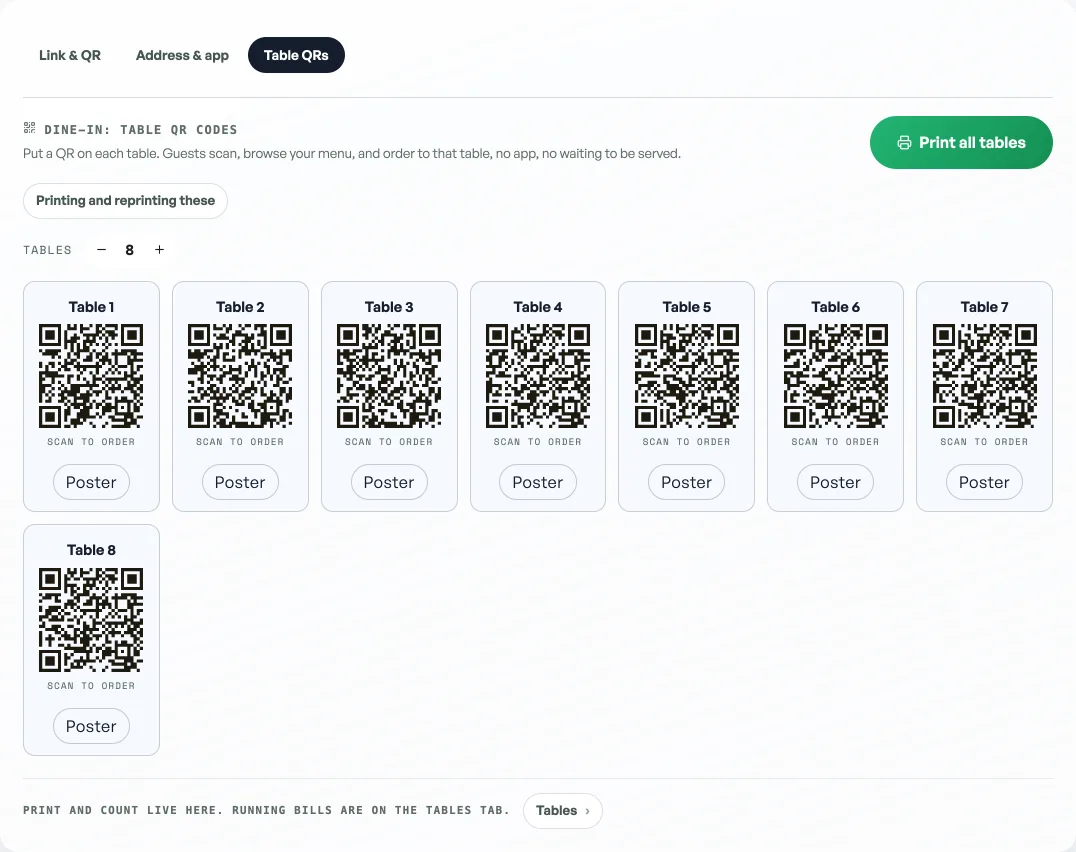
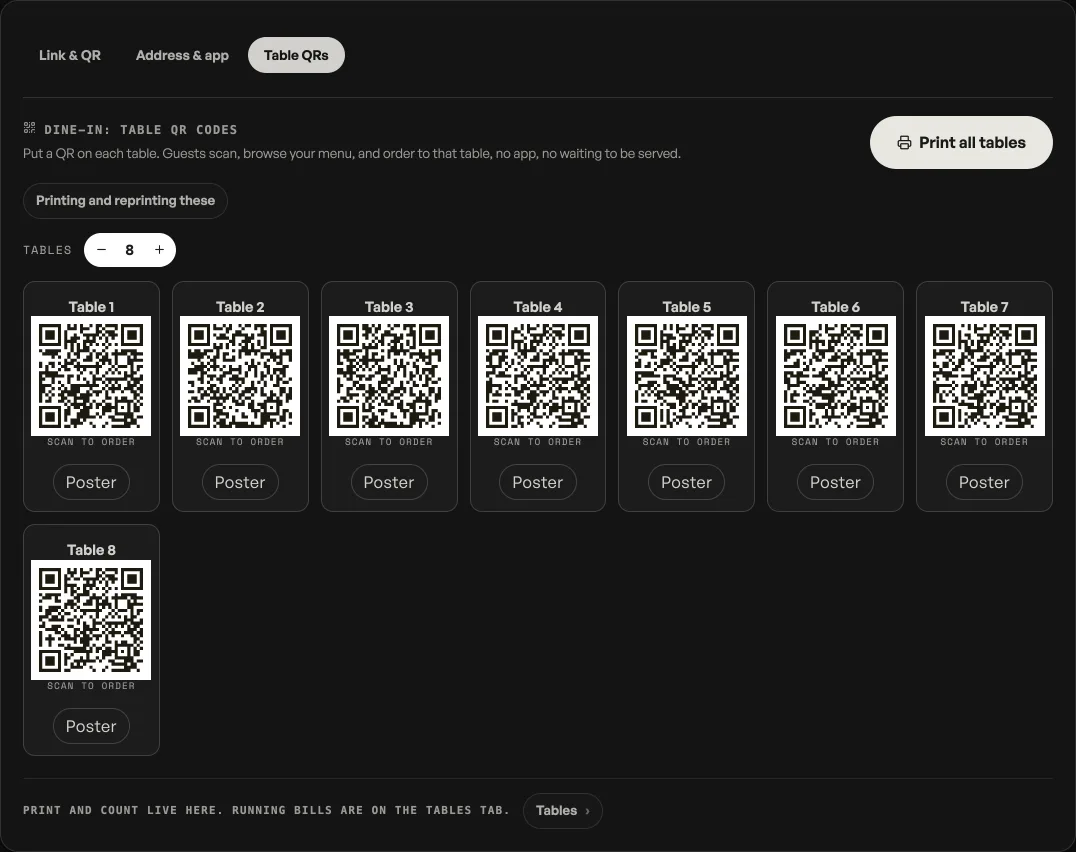
- Open Link & QR, under More on the rail, then Table QRs. Cafes and restaurants have this on already; any other shop switches on Dine-in table ordering under Shop profile, What this shop does.
- Set how many tables you have with the plus and minus buttons, or press Start with 8 tables. Each table gets its own code. That count is what turns table QR on: a Tables tab then appears after Orders, for the running bills. This pane stays for printing.
- Press Print all tables. A sheet opens with one card per table, numbered, carrying your shop name and "Scan to order". Print it, cut them up, stand one on each table.
What the guest sees
The menu: products, prices, categories. Not the shop front with the photograph and the promo cards. They are already at the table. Add on a dish with sizes or a weight opens a sheet, same as the rest of the shop. The bar that only opens the bag says View bag. Inside the bag, the button that actually places the round says Send to kitchen: no name, no phone, no email. Pay when they leave. The note is for the kitchen: allergies, spice level, no onion.
After a send, Order more takes them back to the menu. A line on the menu and in the bag says what is already ordered; More opens the table bill: items, total, and how to pay. Pay at the counter, or scan the shop QR / bank details that checkout already uses. A transaction number goes to the shop; it does not mark the bill paid. Until you Clear table. About us is hidden on a table visit so Home cannot drop the table. Closing the tab is how a guest leaves the sitting.
What you see
The order lands on your board with a Table 4 chip and counts as Dine-in rather than pickup or delivery, so you always know it is for a table in the room. A table round does not send a new-order email: the kitchen is already looking at the board. On a TV board the table number is the code itself, so the kitchen reads Table 4 rather than an order number.
Once table QR is on, the Tables tab is the operations floor. Add items, settle at the counter, and Clear table when the party leaves so the next guest scanning that QR does not see the last sitting. The full walk is Run a table from the dashboard. Print and the table count stay on Link & QR, Table QRs.
Keep the codes straight
A table QR is not your counter QR. It carries the table with it, so putting your plain shop link on a table gets you an order with no table on it, and a table code at the counter sends a takeaway to a table. Print them from the right place and they stay right.
Lowering the table count retires those tables' codes. If you raise the count again the new tables get fresh codes, so print those tables again rather than reusing the old cards.
This does not replace the counter. Staff sales still go through it, and a guest who would rather order at the counter still can. Either way the order moves through Received, Packing, Ready and Done exactly as it always did.
- Run a table from the dashboardOpen a table bill from Orders, add to it on the Tables tab, settle it at the Counter, and clear the seat when they leave.
- What the order statuses meanReceived, Packing, Ready, Done: what each step tells you and your customer.
- Put your orders on a TVA kitchen board, a collection screen, or a live event door count, on any TV with a browser.