Help · Orders & fulfilment
Put your orders on a TV
A kitchen board, a collection screen, or a live event door count, on any TV with a browser.
Hang a TV where the kitchen, the counter, or the queue can see it, and Pasal turns it into a live order screen. Orders appear and move the moment anything changes on the board or the counter, so nobody shouts numbers across the room.
- Open the dashboard on the TV. Any TV with a browser works: a smart TV, an Android box or Fire Stick, or an old laptop or tablet on an HDMI cable. Sign in at pasal.studio/login once, the same way you would on a counter device. A staff member with order access can also sign in with their own account.
- Press TV display. It is at the top of the Orders tab, next to the List/Week switch. The board takes the whole screen; use the corner button for fullscreen if the browser bar is still showing.
- Pick which way it faces. The switch at the top of the screen has two faces, and the TV remembers your choice.
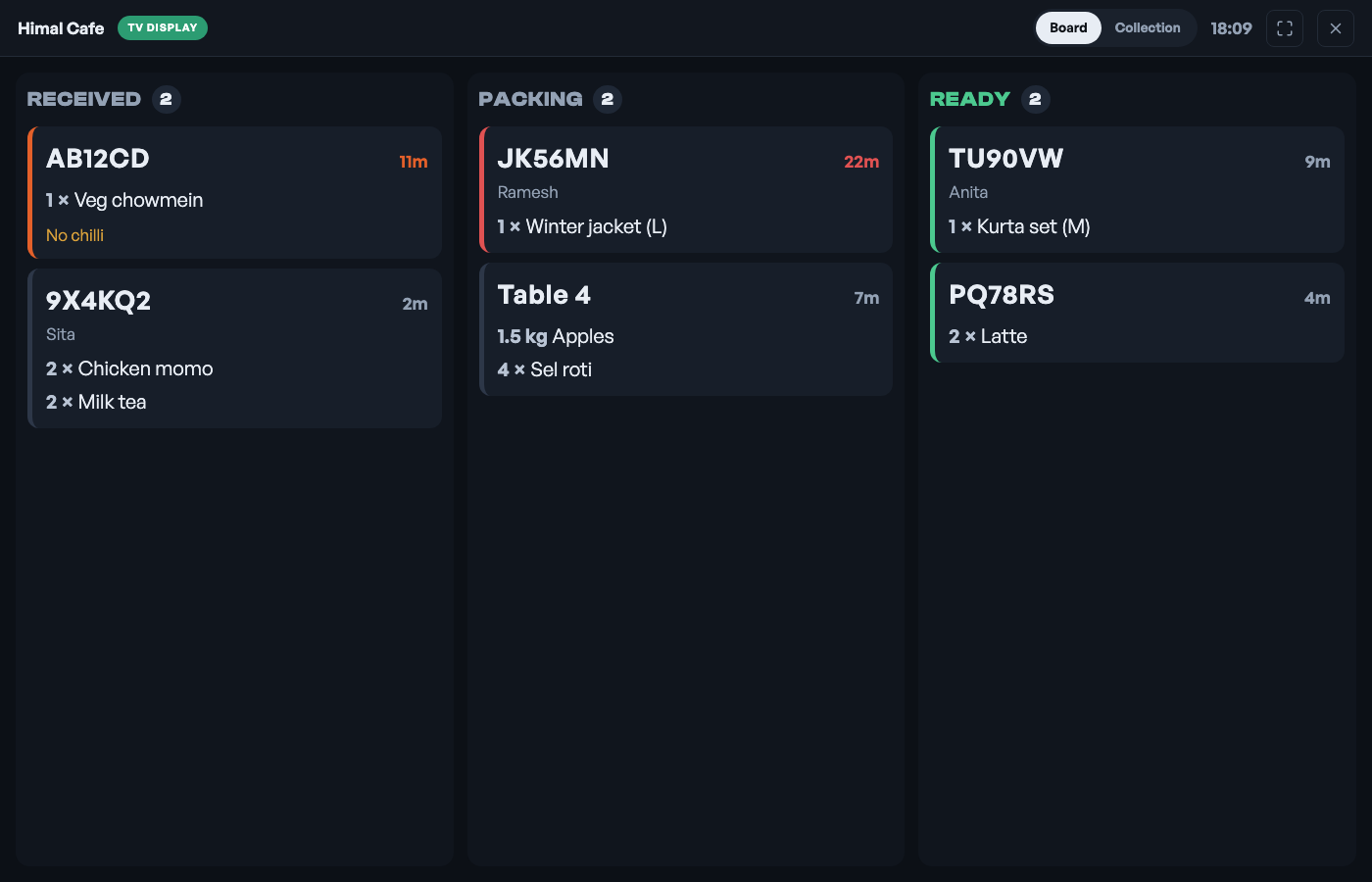
Board is for your staff. Every open order is a card in the three working columns, with the items, the note, and how long it has waited. A card turns amber at 10 minutes and red at 20, so the order slipping through the cracks is the one everyone can see. Hold a card and drop it on Received, Packing or Ready to move that ticket. A tap, or the arrow keys, walks it one step. Collection does not take a drag: it faces the queue.
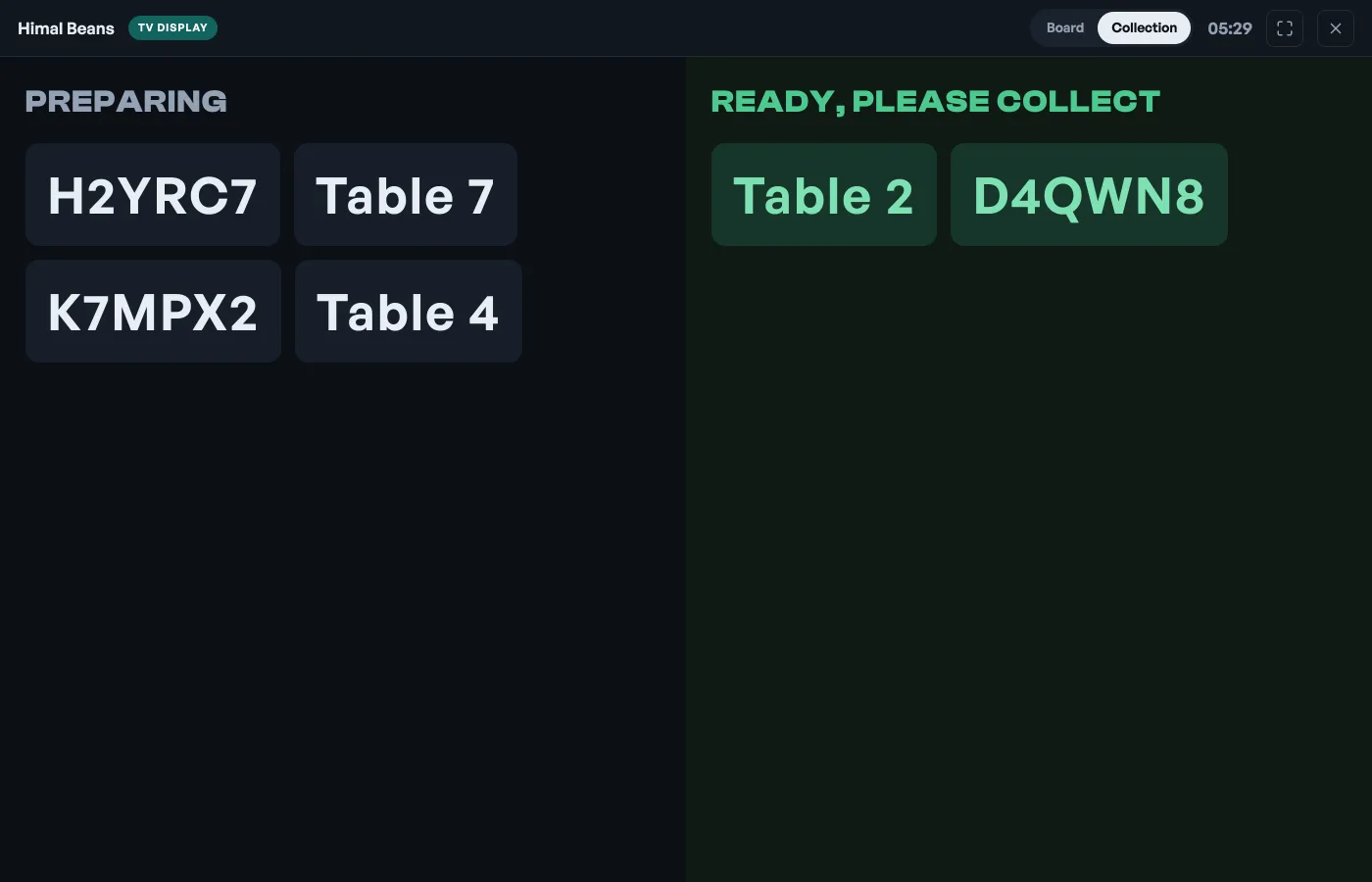
Collection faces your customers, fast-food style: just order codes under Preparing and a green Ready, please collect. No names, items or prices appear, so it is safe pointing at the shop floor. Customers match the code on their phone's order page, or their table number for dine-in.
The screen stays awake by itself, and the TV remembers being a TV: after a power cut, reopening the browser lands straight back on the board. You can still work orders from your phone or the counter; the wall stays in step. To turn it back into a normal dashboard, press the X in the corner.
Events shops: the door and the box office
Ticket sales run through their own pipeline, so an events shop gets its own two faces instead (the button is on the Events tab). A venue running both a counter and ticketing sees all four on the same switch.
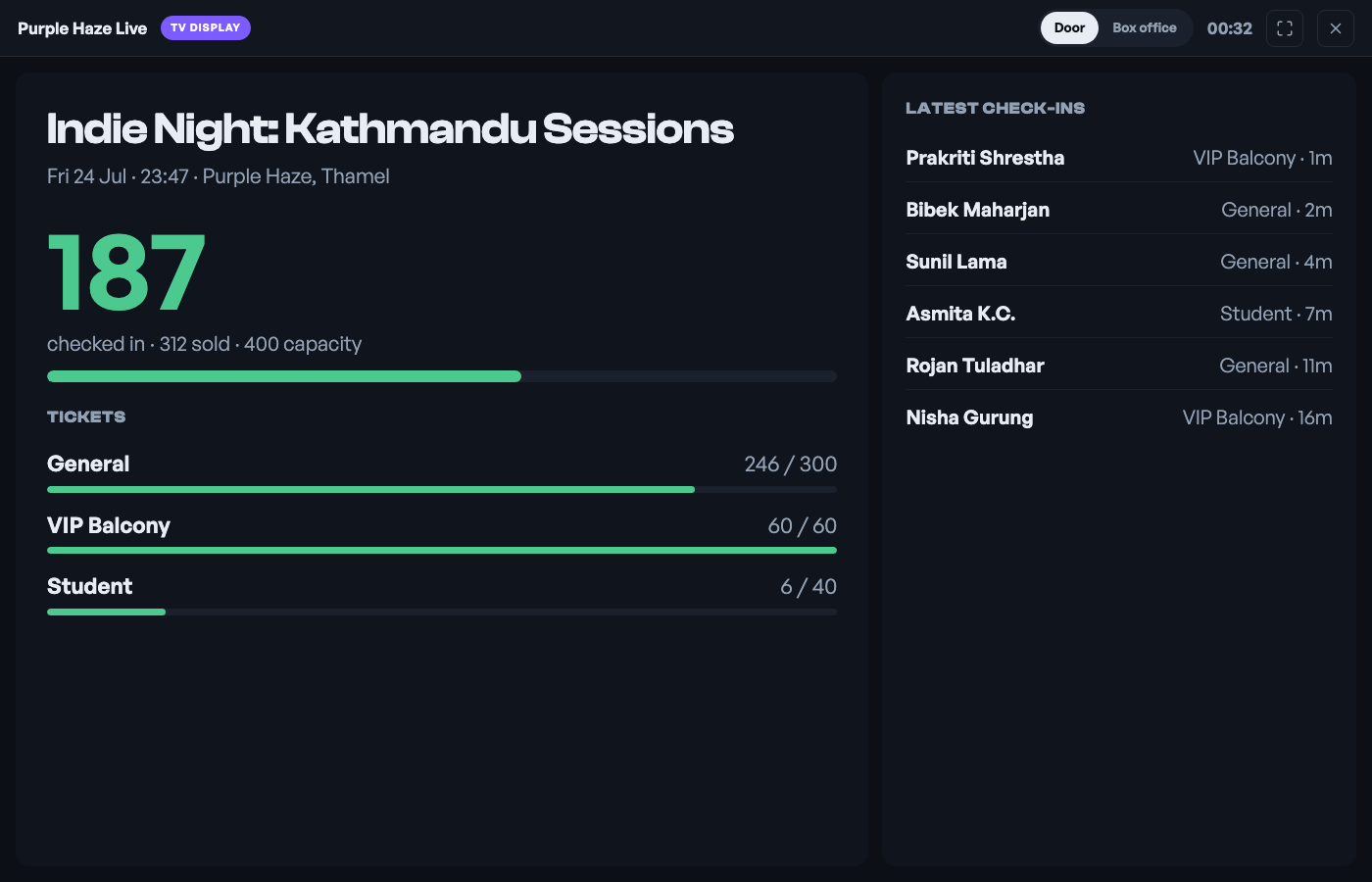
Door faces your door team. It locks onto the event happening now (or the next one coming up): a big live count of who is scanned in against tickets sold, capacity, how full each tier is, and the latest check-ins as they happen. Every scan from the door scanner shows up within seconds, so the person on the gate and the organiser inside are looking at the same number.
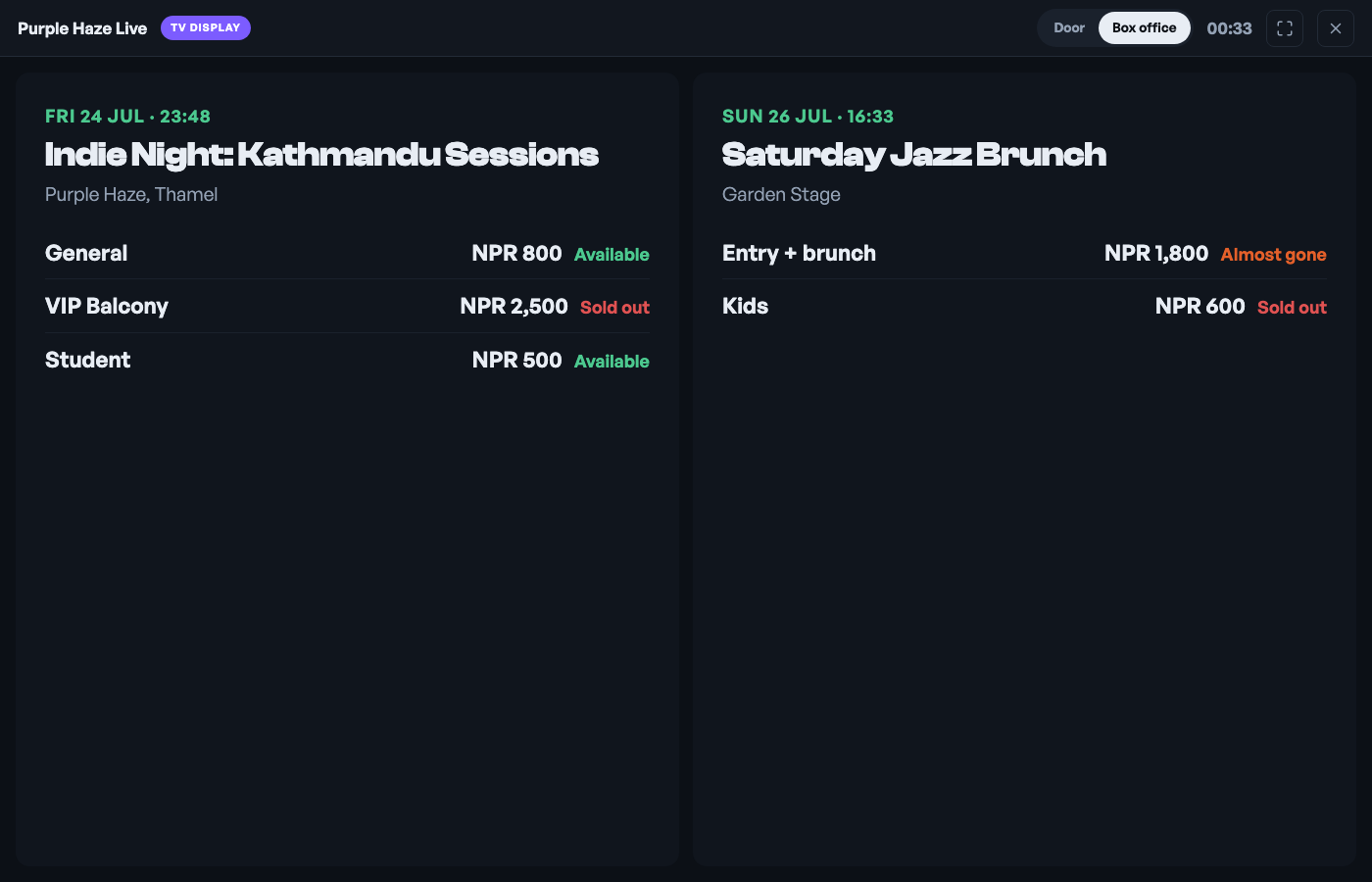
Box office faces the queue outside: your upcoming events with each tier's price and what is still available: Available, Almost gone, or Sold out. No names and no revenue, so it can hang at the entrance. Walk-ups see the Student tier is still open before they reach the counter, and a sold-out night says so from across the street.
The TV board is a Pro tool. On the free plan the launchers go and your order board carries on as normal. See What Pro costs and how to turn it on.
- What Pro costs and how to turn it onThe price of Pro by the month and the year, what it adds, what stays free forever, and how to pay for it today.
- Managing orders on your boardMove tickets through fulfilment, collect payment, and keep the board tidy.
- Take bookings and reservationsLet customers reserve a table or a slot, and manage them on the Bookings tab.