Help · Money
Close the day and count the drawer
Check what the counter says it took against the cash actually in the drawer, then send yourself the record.
At the end of trading, Count the drawer turns the counter's takings into two numbers you can hold against each other: what the counter says it took, and what is really in the drawer.
- Press Count the drawer in the top bar of the counter. The screen it opens is headed Close the day.
- Read the day. How many sales and what they came to, split by how people paid, and what moved most today.
- Enter the opening float: what was in the drawer before the first sale. The counter remembers it for the rest of the day.
- Expected in drawer is your float, plus today's cash sales, plus any repair money taken in cash, less the cash you handed back. The two middle boxes are filled in from your own records and you can change either. Count the drawer and type what you counted.
- The counter says whether the drawer balances, is over, or is short, and by how much.
- Press Send the day summary on WhatsApp to put the whole thing in a chat, to yourself or to whoever keeps your books.
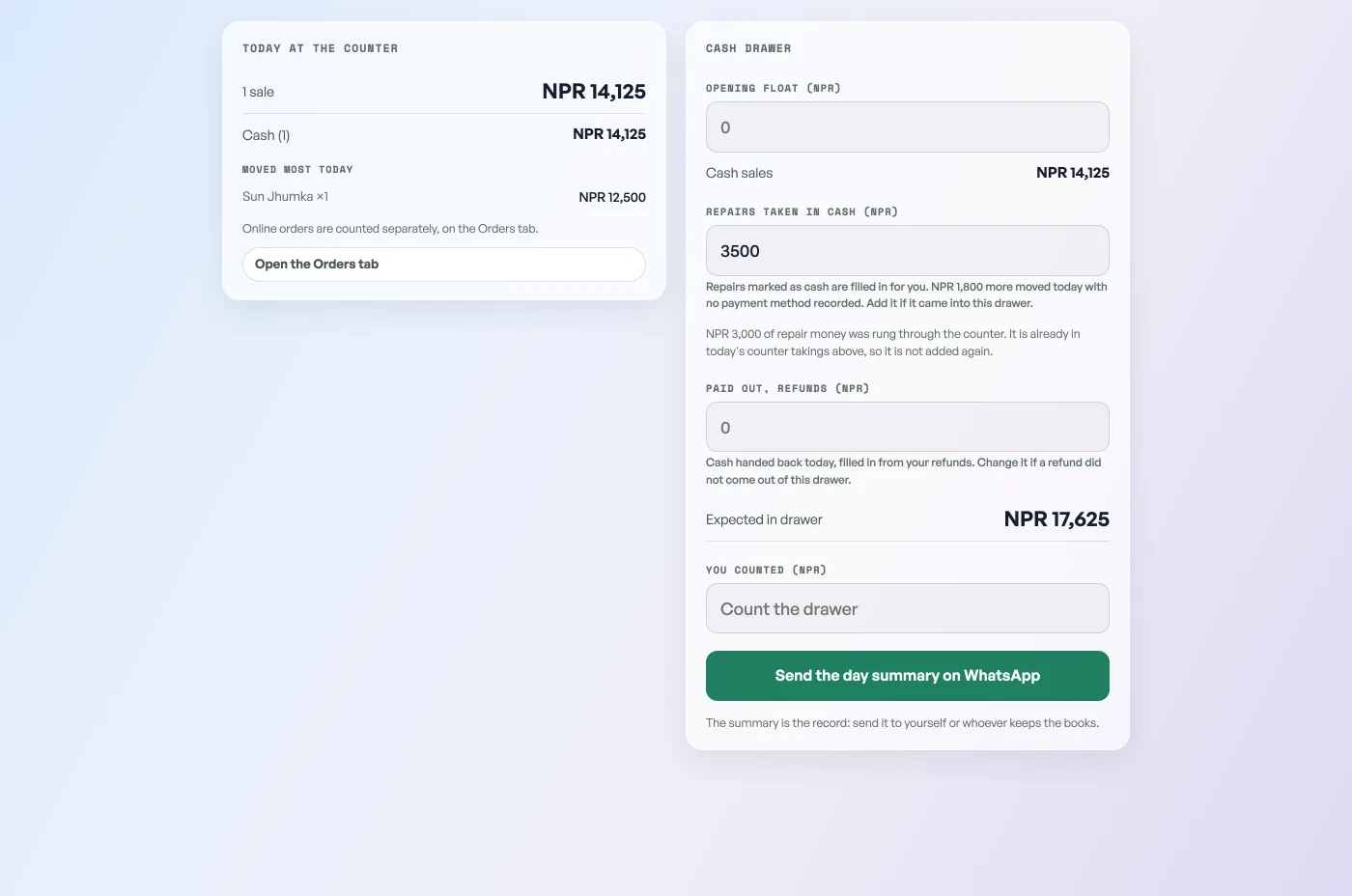
Only cash reaches the drawer, so eSewa, Khalti, Bank QR and card takings are listed but are not part of the expected figure. Counter sales are the only sales counted here: online orders are counted separately on the Orders tab, so a quiet counter on a busy delivery day is not a mistake.
If you mend things, the bench is counted too. A repair puts money in the drawer twice: the deposit on the day you took it, and the balance on the day the machine goes back. Only what you marked as Cash on the job is added. A repair you also rang through the counter is named and added once, not twice. A repair with no payment method recorded is named too, and added to nothing, because Pasal will not guess that money is in your drawer.
Closing the day locks nothing and changes nothing, it only counts. Open it mid-afternoon to see where the day stands, then go back to the counter and keep selling.
- Ring a sale at the counterOpen the counter, build a bill, take cash or QR, and hand over a receipt.
- Take in repair jobsBook a device in, track it to pickup, and record what you charged.
- Managing orders on your boardMove tickets through fulfilment, collect payment, and keep the board tidy.