Help · Orders & fulfilment
Handle returns and exchanges
Log what comes back for a refund or a size swap, and see why it keeps happening.
Clothes come back. Usually it is the fit, sometimes it is a fault, and knowing which is which is what stops it happening again. The Returns tab records both.
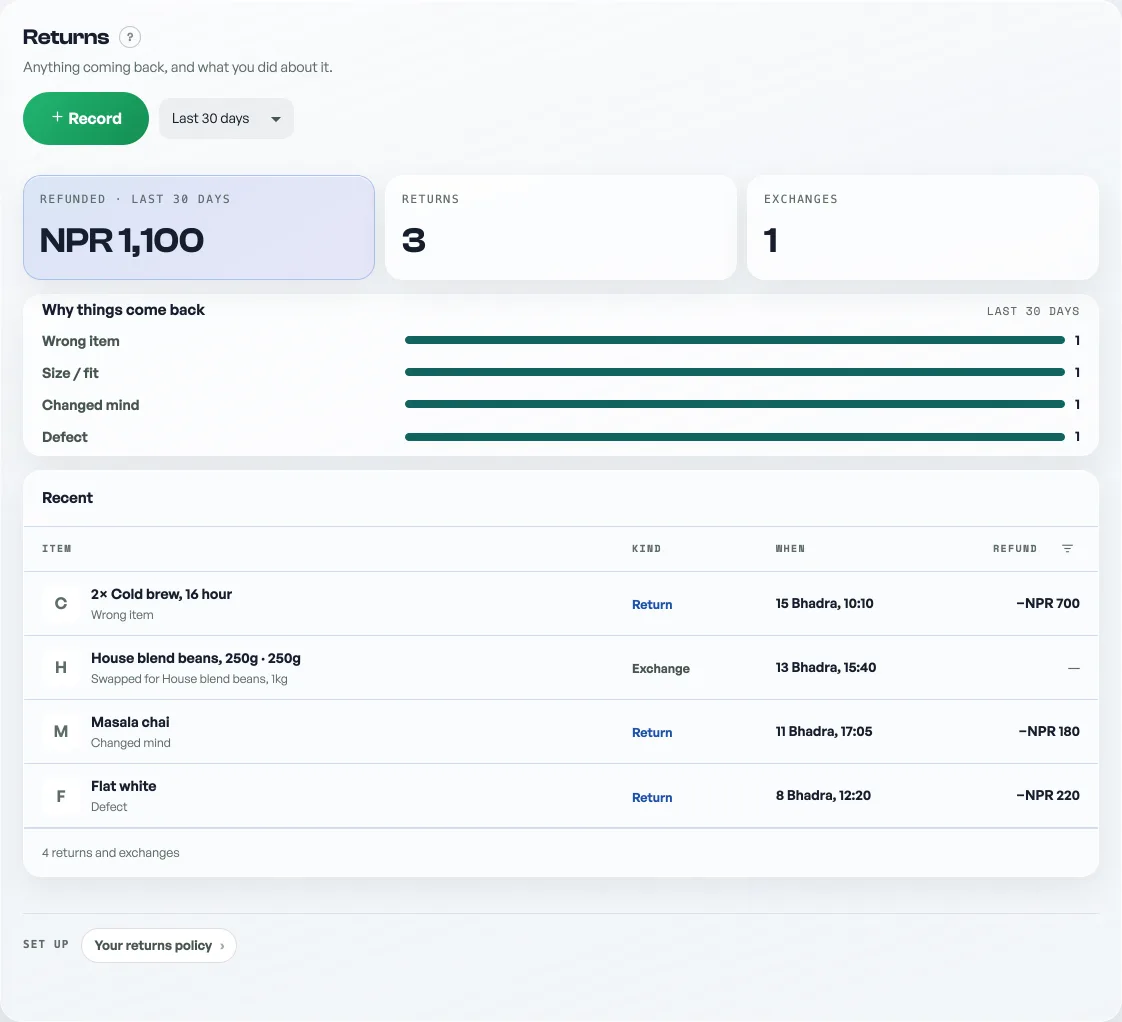
- Press Record and choose Exchange (a swap, usually a size) or Return (money back).
- Find the order. The sheet opens on the order number: type it and the lines from that order appear, each showing how many are still returnable, so the same shirt cannot come back twice. Tap the line that came back. No order number for this one? Press No order number for this one and type the item, size and quantity by hand instead.
- Say why: size or fit, defect, wrong item, changed mind, other.
- Finish it off. A return takes the refund amount; an exchange takes what it was swapped for.
The slip and the refund note
A saved return that gave money back carries its own paperwork, right on the row. Print refund slip prints it on your 58mm or 80mm roll. Send the slip on WhatsApp opens a chat with the words already typed, for the shop with no printer. The slip says what came back, what was handed over and how; a refund method you did not record prints as Not recorded, because a slip should not guess.
An exchange gets no slip. It swaps stock and hands no money back, so a slip for one would be a receipt for a payment nobody made.
The customer hears about it too. When the return is against an order that carries an email address, saving it mails a refund note there by itself: how much went back, and whether the receipt they already hold still stands. Email the refund note on the saved row sends the same note again. A walk-in return, or an order with no address, has nowhere to send, and the button says so rather than hiding.
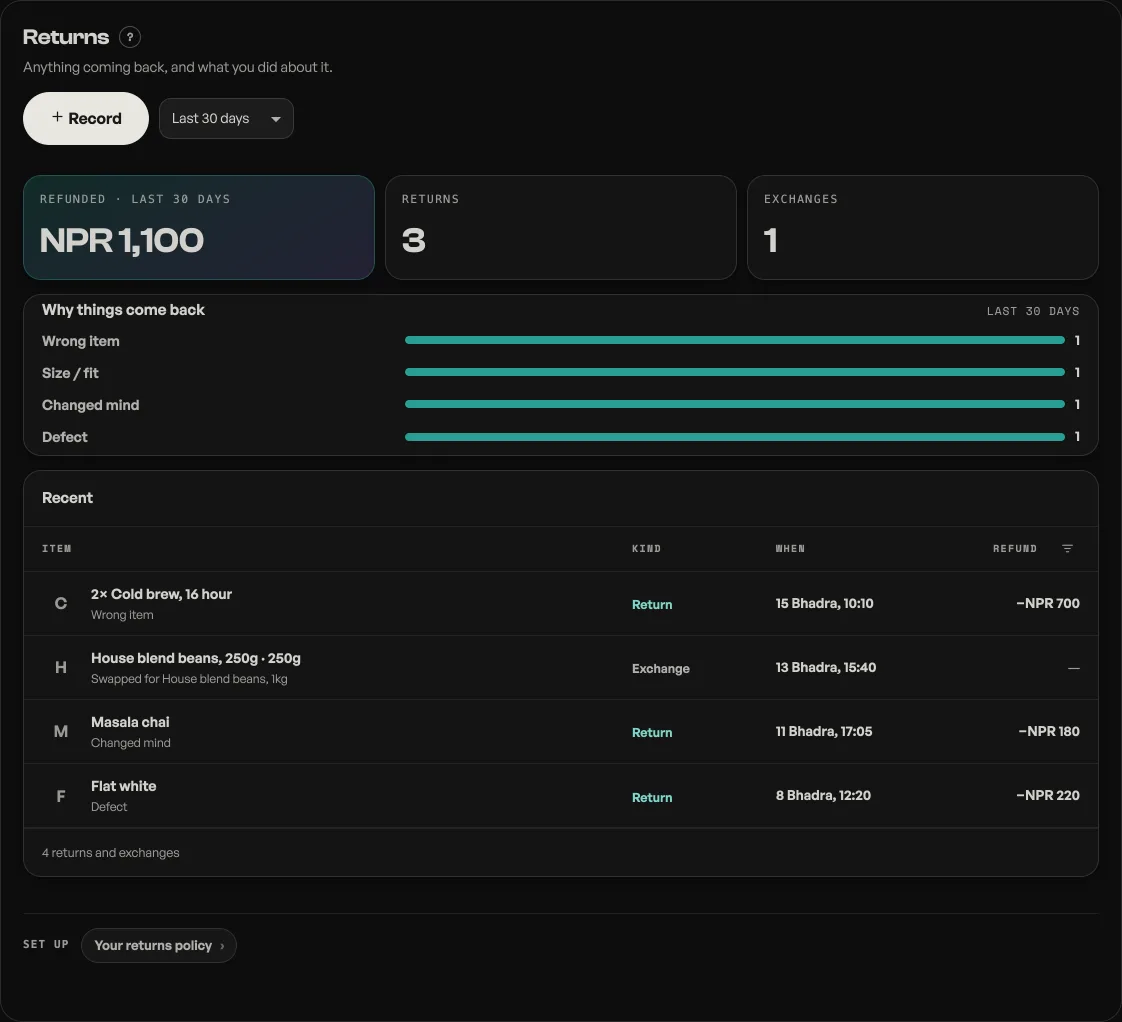
The tiles show what you refunded in the last 30 days and how many returns and exchanges you took. Why things come back ranks the reasons, which is the useful part: a run of size returns on one line usually means the sizing is off, not the customer.
On by default for clothing, jewellery, electronics, furniture and handicraft shops; any other shop can switch it on under Shop profile, "What this shop does". Customers never see it. If you want to publish your rules, write them in your shop policy.
- Print on a 58mm or 80mm rollTell Pasal which paper your printer takes, and the bill is laid out to fit it.
- Write your shop policyReturns, delivery rules and terms, shown on your site without sending customers anywhere else.
- Managing orders on your boardMove tickets through fulfilment, collect payment, and keep the board tidy.