Help · Orders & fulfilment
Set delivery fees and free delivery
Charge a flat fee, waive it over an amount, and keep checkout totals honest.
Delivery pricing lives on Shop profile, then Orders and delivery under Selling: one flat fee, and an order amount above which delivery becomes free. If you take bookings too, that row reads Orders, bookings and delivery.
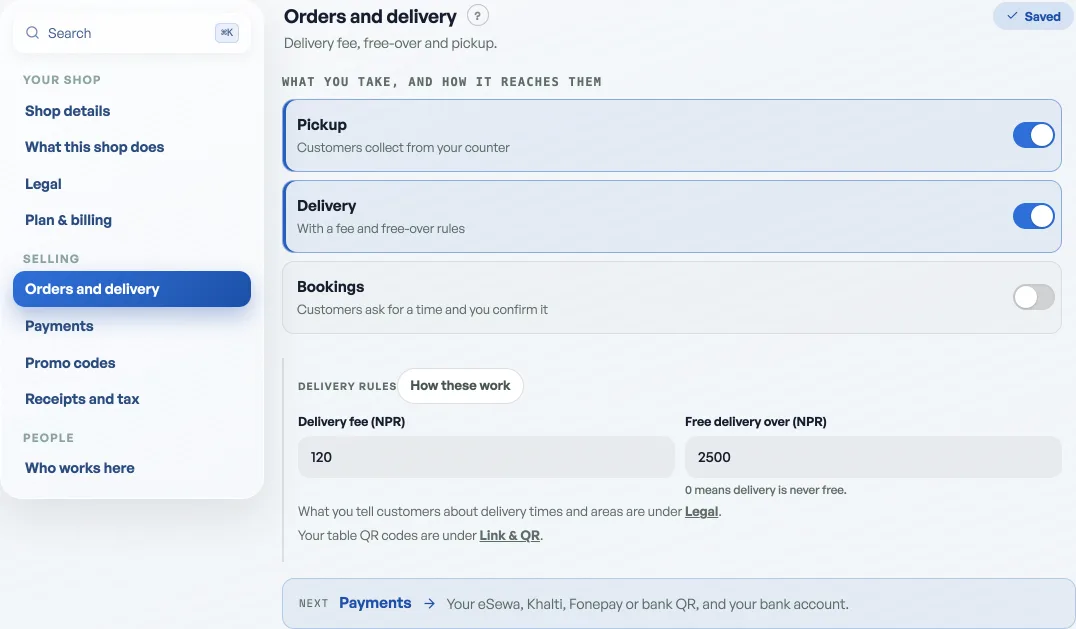
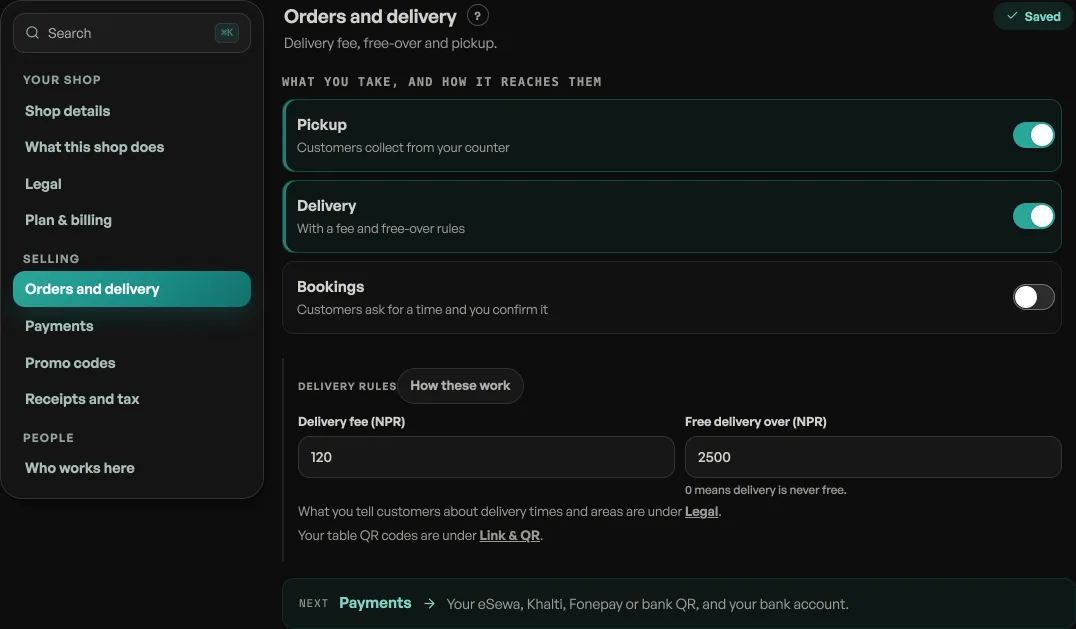
- Delivery fee: added to every delivery order at checkout, so the total the customer confirms is the total you collect.
- Free delivery over: orders at or above this amount ship free, and your storefront advertises it (a banner like "Free delivery over NPR 3,000").
- Pickup orders never get a delivery fee, and you can switch delivery off entirely if you only do counter pickup.
- Salons and service shops: both switches start off for you. The day you start selling products, flip either one on in this same pane, and your checkout, your About page and this fee form all follow.
Read next
- Managing orders on your boardMove tickets through fulfilment, collect payment, and keep the board tidy.
- Take bookings and reservationsLet customers reserve a table or a slot, and manage them on the Bookings tab.
- Get alerted for every new orderInstall the dashboard like an app and turn on notifications so nothing is missed.
Still stuck? Message usTell us what is happening and we will reply, usually the same day.
WhatsApp usOr email support@pasal.studio