Help · Selling
Manage your catalog
Add products, photos, prices, and take items off the shelf when you are out of stock.
Your catalog is what customers see when they open your shop link. Keep it current and orders stay accurate.
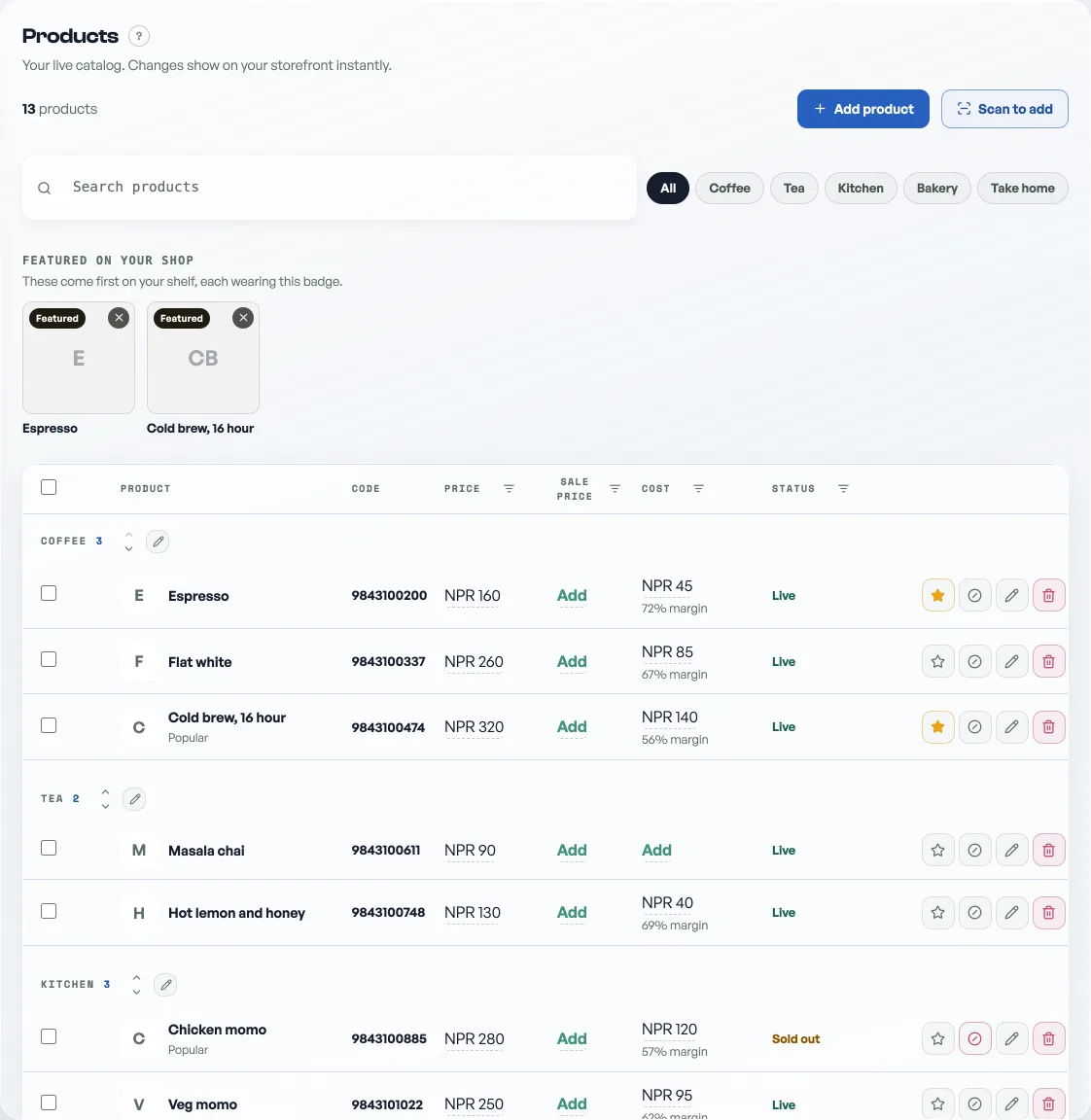
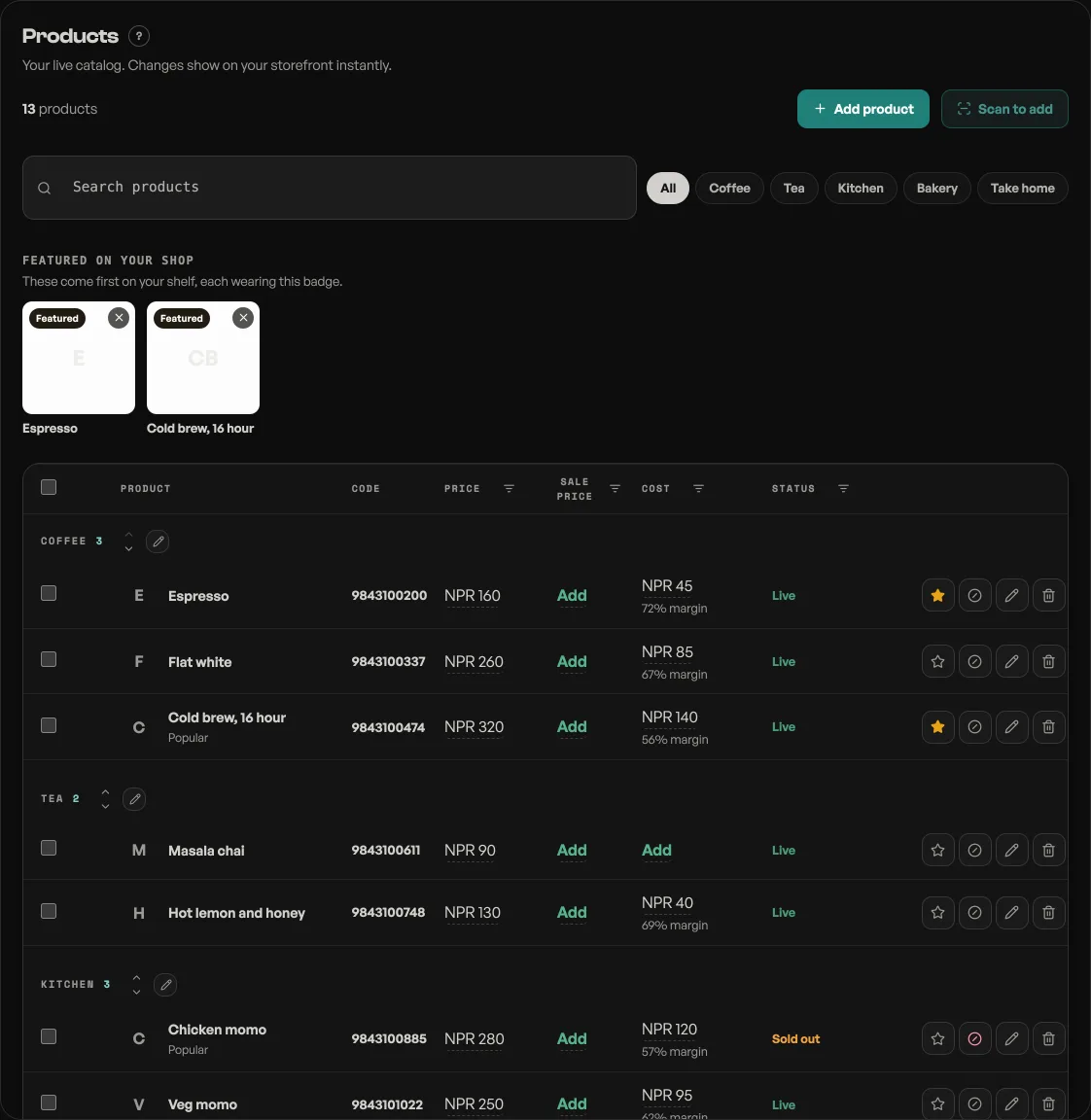
Add a product
Open Products and press Add product. The editor is two columns: what you are selling on the left, its photos and category on the right.
- Name and description. The description is optional. Leave a blank line between paragraphs and they stay separate on the product page.
- Price, in NPR. Sale price below it is what you are charging instead; leave it empty for no sale, and the old price shows struck through on your shop.
- Cost price is what the item costs you. Only you and your permitted staff ever see it, and it turns your takings into profit everywhere money is shown. See Track cost price and profit.
- Stock counts down as you sell and stops the counter at zero, if you want it counted. See Count stock so you cannot oversell.
- Badge is the small word on the card: New, Bestseller. Barcode is for scanning at the counter; a USB scanner types straight into the box.
- Photos. The first one is the cover, and you can drag one to the front to change that. Pick Fill the frame or Show the whole photo depending on whether your pictures are cropped tight or need all of themselves.
- Category. Type a new one or tap a chip of the ones you already use. Categories are what the filter row on your shop is built from.
Sizes and colours
One product, many versions: a kurta in three sizes, a mug in four colours. Open Sizes, colours and stock in the editor. Each size can carry its own price, and any single size or colour can be marked sold out without taking the product down. See Sell one product in several sizes and colours.
Feature the ones you want seen
The star at the end of a product row pins it to a Featured shelf at the top of your shop. Use it for what is fresh, what has margin, or what you want to move this week. See Feature a product on your shop.
When you run out
Toggle a product off and it disappears from the shop immediately; turn it back on when stock returns. A cafe that only wants it gone until tomorrow should use the sold-out toggle instead, which leaves the item on the menu greyed out rather than pretending it never existed, see Mark an item sold out for the day.
Changes save live. There is no separate publish step: your link always shows what is on the board right now.
- Mark an item sold out for the dayRun out of momo at eight? Grey it out on the menu and let it come back tomorrow.
- Count stock so you cannot oversellGive a product a number, watch it fall as you sell, and let it stop itself at zero.
- Feature a product on your shopStar the ones you want seen and they get their own shelf at the top of your shop.